Your event saves as you go
You can start an event and walk away. It saves on its own and waits in My Drafts until you publish.
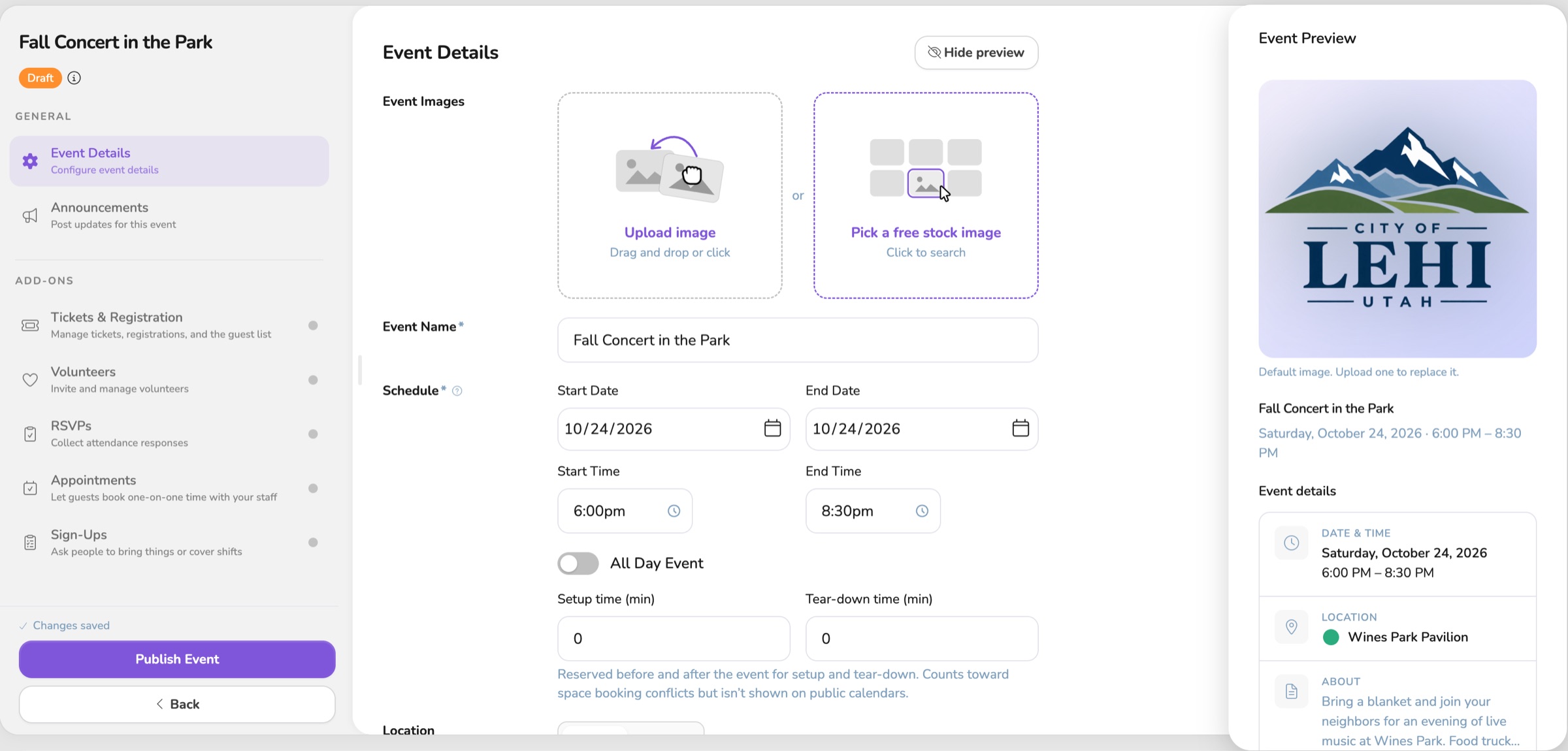
You can start an event between other work and get pulled away. A phone call, a parent at the door, a game that runs long. Vega saves every change on its own, so the title, the time, the place, and the tickets you already set up are still there when you come back. You do not have to remember to hit save, and you do not lose an hour of setup because you closed the tab.
That matters when you are the one responsible for what goes out. A half-written event used to be a risk. Either you rushed it onto the calendar so you would not lose it, or you left it open and hoped nobody else needed the computer. Now the work can sit. You come back to a real event, not a blank form.
A draft stays off the calendar. Guests cannot find it, and nobody is asked to approve it. You publish when the event is ready to announce, not when you first had the idea. The room, the price, and the details can still be wrong at 2 p.m. They do not have to be public until you say so.
Tickets & Registration, RSVPs, Appointments, and Sign-Ups can all be in place before that first publish. Build the offer while the event is still private. General admission, a members price, a volunteer sign-up, a slot for families to book time with staff. Finish that before anyone can buy or sign up, so the first person who sees the event sees the real thing.
Privacy is part of that same decision. It is a dropdown: Public, Private, or Confidential when your organization uses confidential events. Set who the event is for before it ever leaves your desk.
Every event you start ends up in one list. Open Events, then My Drafts. That is the pile of work that is not live yet. Use it the way you would use a whiteboard in the office. What still needs a room. What still needs a price. What is ready for you to put on the calendar this week. You are not hunting through email or asking someone if they finished the spring concert.
- Open Create Event and start filling it in. Your work saves on its own. Leave and come back as many times as you need.
- When it is ready, click Publish Event. If the room needs approval, the button says Submit Event Request. Until then, it stays a draft.
Learn more
More that's new
See the event before anyone else does
See the guest view while you draft, keep a live event up while you edit it, and publish a whole series at once.

One Vega logo, on the site and in the app
The app now uses the same Vega logo as the website, from the menu to the sign-in page.
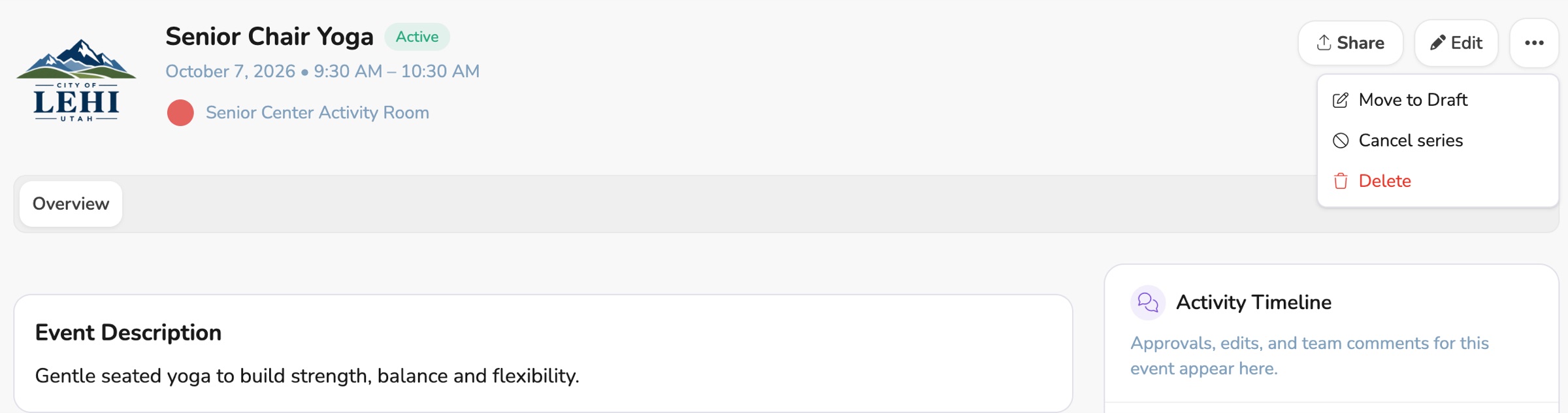
Update a live event without taking it down
Title, description, ticket, and RSVP edits stay live, and only a new time or room needs approval.