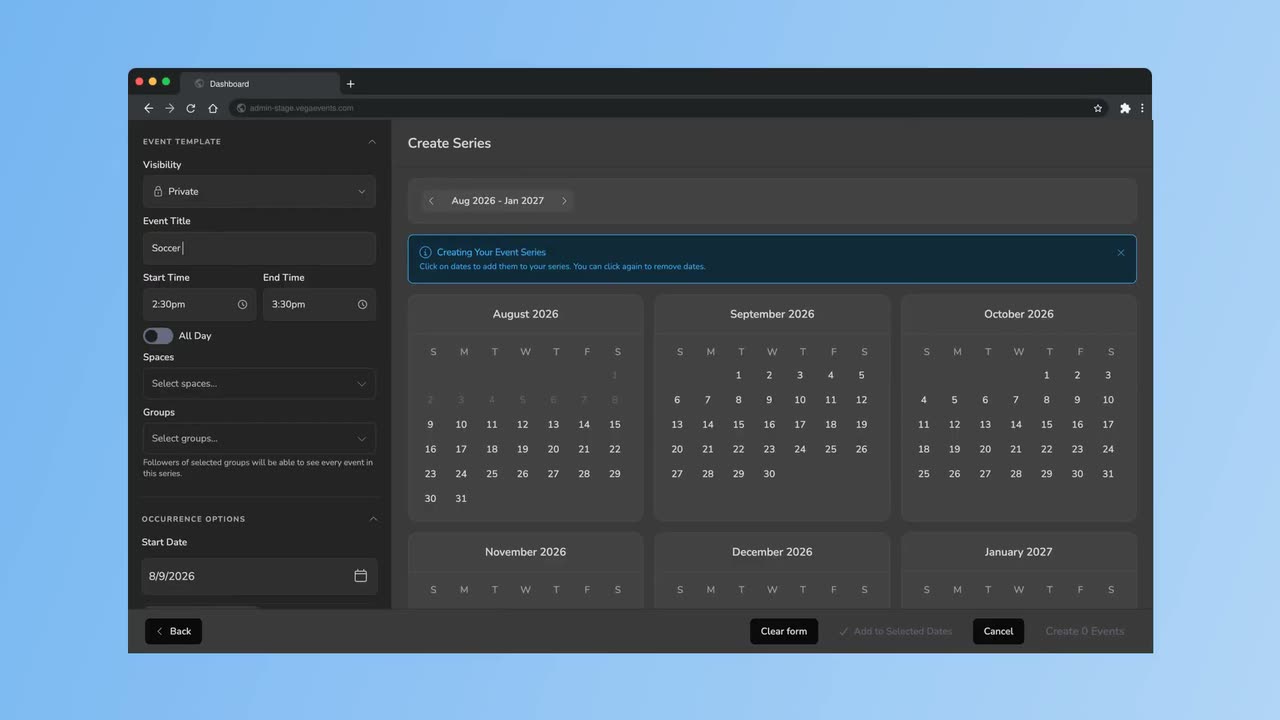
Create an Event
Build your first event from scratch: details, date, space, and publishing.
Transcript
0:01 This tutorial guides you through creating and customizing events in the
0:04 Vega Events Calendar application.
0:06 You will learn how to set event details,
0:08 select spaces, add images, and manage
0:11 privacy settings. Click the calendar
0:13 section to view your schedule and manage
0:15 events.
0:16 Click the create button to start adding
0:18 a new event to your calendar.
0:21 Or click and drag here on the calendar
0:23 to continue with setting up your new
0:25 event.
0:26 Click the title field to enter the name
0:28 of your event.
0:30 Fill in the title of the event.
0:33 Click select spaces
0:35 to choose the locations where your event
0:37 will take place.
0:39 Click here to select the available
0:41 spaces for your event.
0:43 Click here to select an additional space
0:45 for your event.
0:46 Click done to finalize your space
0:48 selections for the event.
0:50 Click here to optionally select or
0:52 assign event groups like community,
0:54 football, dance, and more.
0:56 Click done to confirm your selected
0:58 groups.
1:00 Click advanced edit to access more
1:02 detailed event customization options.
1:05 If you'd like, you can click here to add
1:07 an automatic stock image based on the
1:09 title of your event.
1:11 Click here to select an image from the
1:12 available stock options.
1:15 Drag the square area to adjust the
1:16 cropping on the image.
1:19 Click accept to confirm your chosen
1:21 image for the event.
1:23 Click make event private to restrict
1:25 event visibility to selected users.
1:28 Click save to apply all changes and
1:30 create your event.
1:32 Click back to return to the main
1:34 calendar view after saving your event.
1:37 You have successfully created and
1:38 customized an event in the Vega Events
1:40 Calendar, including setting the title,
1:42 selecting spaces, adding images, and
1:45 managing privacy.
1:47 You can now view and manage your event
1:49 within the calendar interface.
Auto-generated from the video's captions, so it may contain small errors.