Quick Start for Organizers
Vega organizer quick start: create an account, finish onboarding, connect Stripe, publish an event, and invite staff—first-week checklist for admins.
This guide walks you through setting up your organization on Vega and creating your first event.
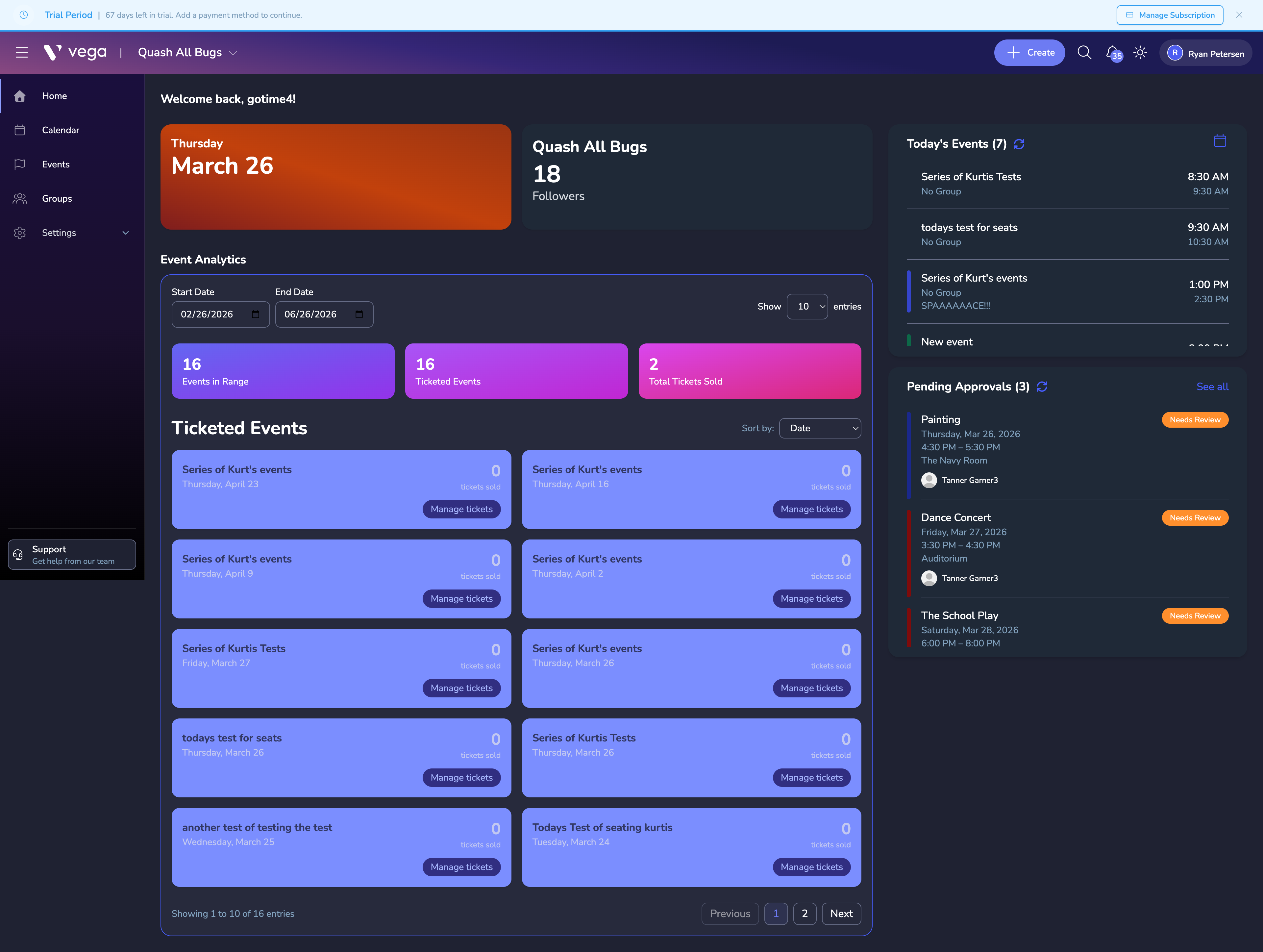
1. Create Your Account
Sign up for Vega using your email and password, or use phone number authentication.
- Visit the Vega sign-in page
- Choose Sign Up and enter your details
- Verify your email or phone number
- You’ll be taken to the onboarding flow
💡 Tip
If you received a staff invitation from another organization, click the invite link in your email — it will guide you through account creation and automatically add you to the team.
2. Set Up Your Organization
The onboarding wizard walks you through the essential setup steps:
- Organization Details — Enter your organization name, upload a logo and wallpaper image, and set your location
- About Your Org — Provide details like description, founding year, and size
- Resources & Calendar — Configure your event calendar and add venue spaces
- Staff & Roles (optional) — Create custom roles and invite team members
ℹ️ Info
You can always come back and update these settings later from Settings > General.
3. Create Your First Event
Once your organization is set up:
- Navigate to Events in the sidebar
- Click Create Event
- Fill in the event details — name, date, time, location, and description
- Add ticket types and set pricing
- Publish your event
For a detailed walkthrough, see Creating an Event.
4. Connect Payments
To accept ticket payments, you’ll need to connect a Stripe account:
- Go to Settings > Payment
- Click Connect with Stripe
- Follow the Stripe onboarding flow to link your bank account
See Connecting Stripe for the full guide.
5. Invite Your Team
Add team members and control what they can access:
- Go to Settings > Users and open the Invited Staff tab
- Click Invite staff
- Enter their email addresses
- Assign roles with the appropriate permissions
What’s Next?
- Roles & Permissions — Understand the permission system and create custom roles
- Ticket Types & Pricing — Configure advanced ticketing options
- Community Pages — Create a branded public page for your events
- Billing & Subscription — Manage your Vega plan