Season Passes
Sell one pass for a series, a group, or a set of events. Holders get in on top of each event's tickets, and staff check the pass in at the door.
A season pass covers more than one date. A ticket is for one event. A pass admits its holder to every series, group, or event you attach, on top of that event’s ticket sales.
Vega turns on season passes for your organization. To get them, contact Support. Once they’re on, Tickets & passes shows in the side menu. Only people who can manage events see it.
Create a pass
- Click Tickets & passes.
- Click New pass. You can also pick Pass from the Create menu.
- Under Pass details, fill in:
- Details. Set the Name, an optional Cover image (16:9 works best), and a Description. The description is shown on the pass page.
- Pricing & quantity. Set a Price. Enter 0 for a free pass. Quantity is how many you sell. Leave it blank for unlimited. Holders get in on top of each event’s ticket sales, so leave room for them when you set event capacity.
- Fees. Choose Price includes fees or Price is your payout. Price includes fees means buyers pay exactly the price, and fees come out of it. Price is your payout means buyers pay your price plus fees, and you receive the price.
- What does this pass cover? Add a Series, a Group, or Individual events. A series covers every date, including dates added later. A group covers every event in that group, including ones added later. Individual events are one-off dates on top. Covers lists what the pass includes. The dates come from those events. You do not set a start and end date.
- Who can get it. Anyone sells the pass on your public pages. Staff issued only is not sold publicly. Your team issues it to holders.
- Click Publish to put it on sale, or Save draft to keep it off the public pages.
Pass preview on the right shows the pass the way buyers will see it, and updates as you type.
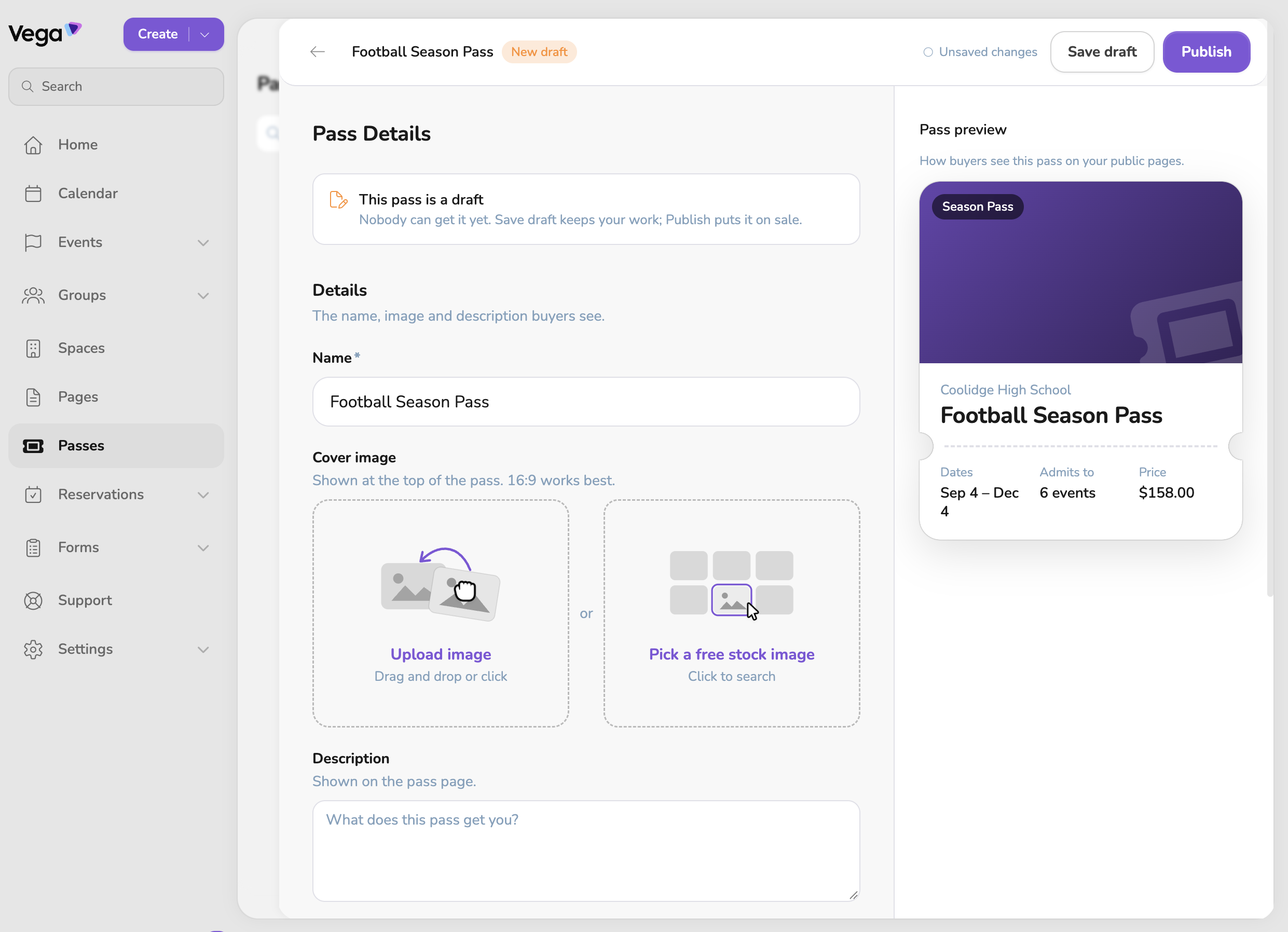
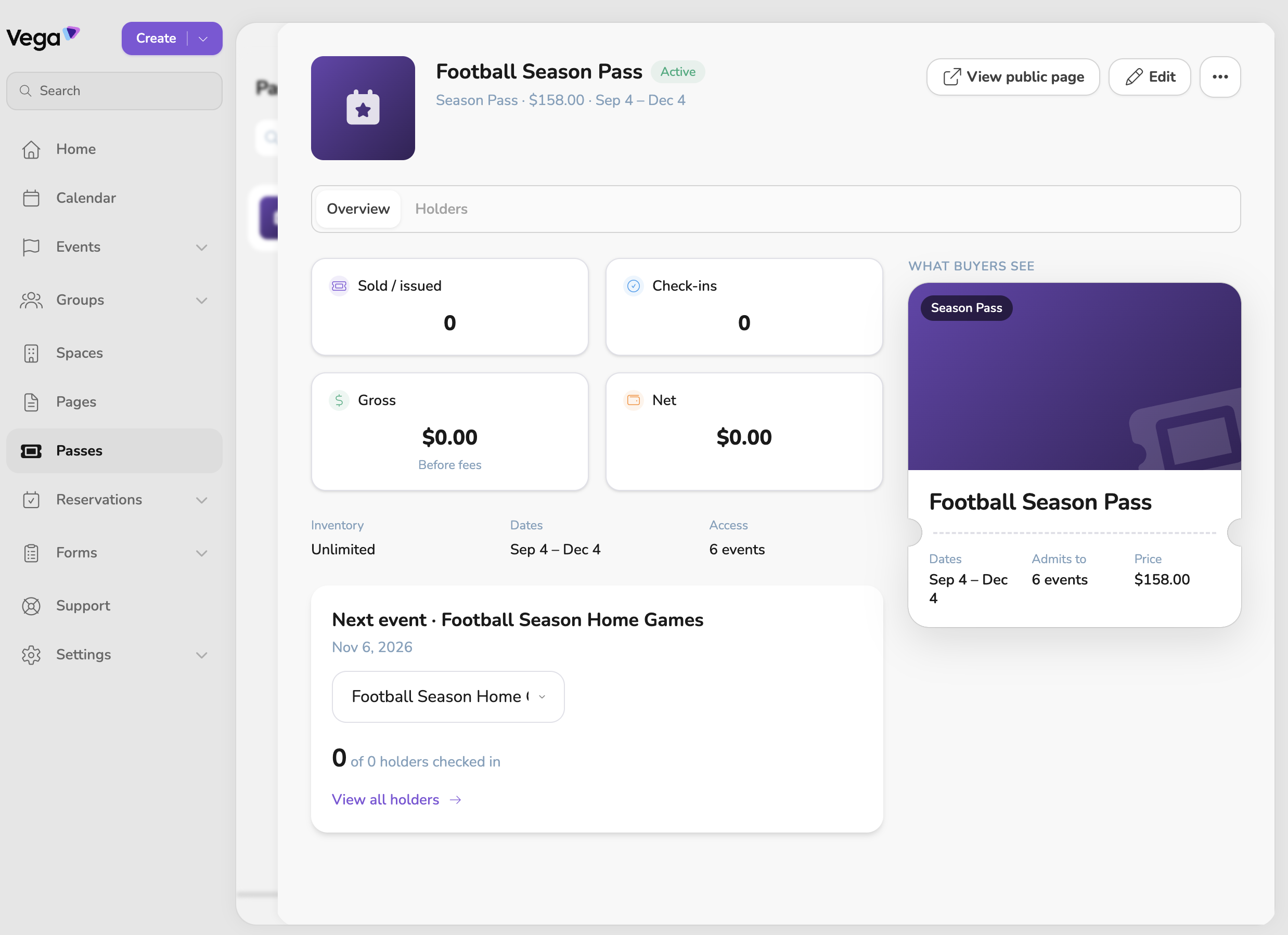
In the editor, a new pass shows New draft. After you save, a draft shows Draft. A published pass shows On sale if anyone can get it, or Staff only if your team issues it. On the pass page itself, a published pass shows Active.
While it is a draft, nobody can get it yet. Save draft keeps your work. Publish puts it on sale.
On an event
Open the event’s Tickets & Registration add-on and stay on the Tickets tab. The Season passes card lists passes that can admit holders in addition to that event’s ticket sales.
- New pass starts a new pass (shown when no passes cover the event yet).
- Add to this pass includes this event.
- Included means you added this event directly. Remove takes it off.
- Included via series or Included via group means the event is covered because it belongs to a series or group on the pass. Change that coverage on the pass itself.
- Manage passes opens the Passes list.
After you publish
Open the pass from the Passes list under Tickets & passes.
Overview shows Issued, Check-ins, Gross (before fees), and Net. Inventory, Dates, and Access sit under those numbers. What buyers see is the pass as it looks on the public page.
Holders is the list of people who have the pass.
Edit opens the same form. On a published pass, the button is Save changes.
View public page opens the buyer page when the pass is on sale to anyone.
The more menu has Issue comps, Archive, and Delete pass. Archiving keeps holders’ access. If people have already bought it, delete asks Delete pass with sold inventory?
What buyers see
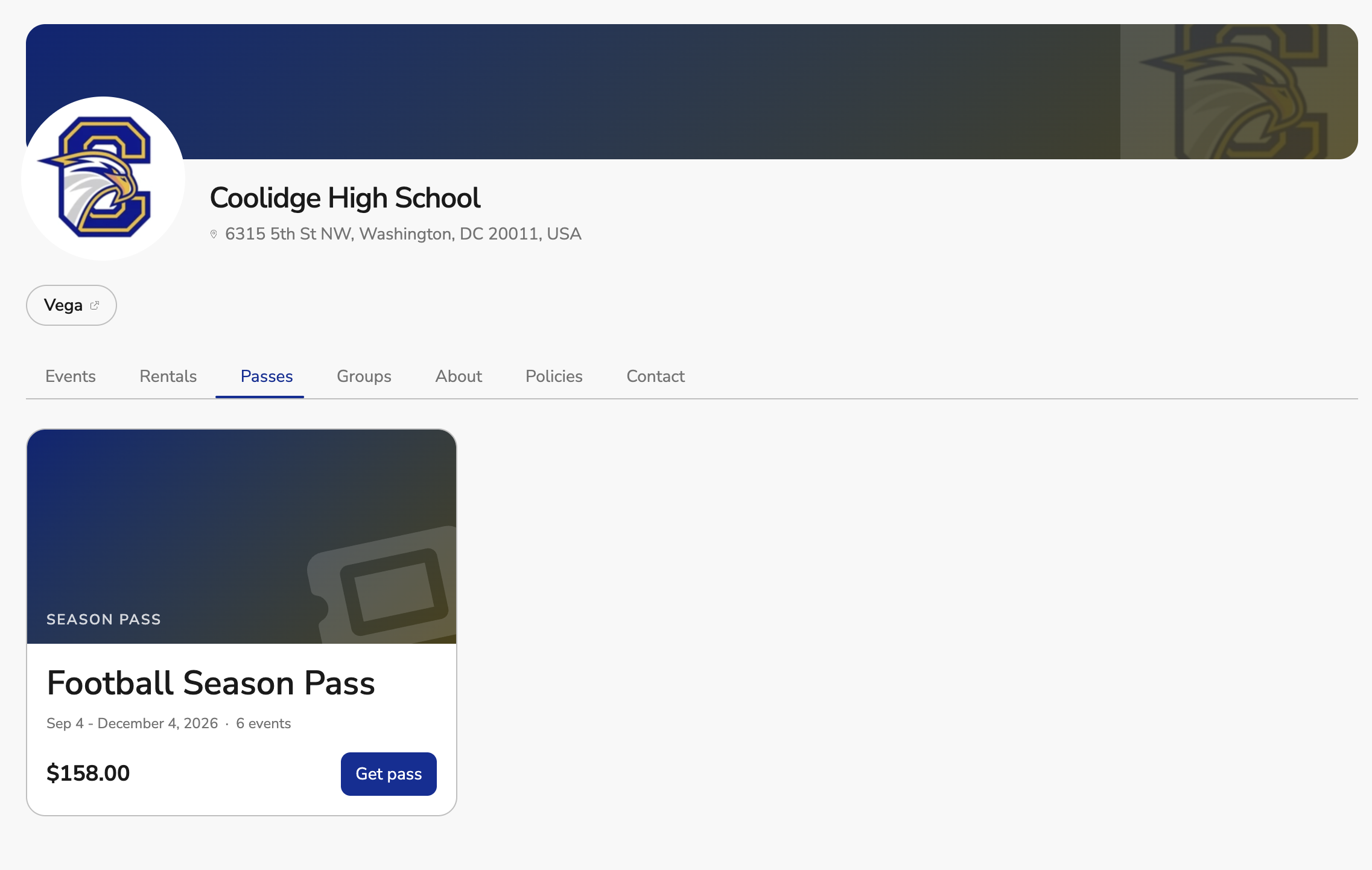
Once a pass is on sale to anyone, your public page gets a Passes tab. Each pass shows as a card with its dates, how many events it covers, and its price. Buyers click Get pass to buy it.
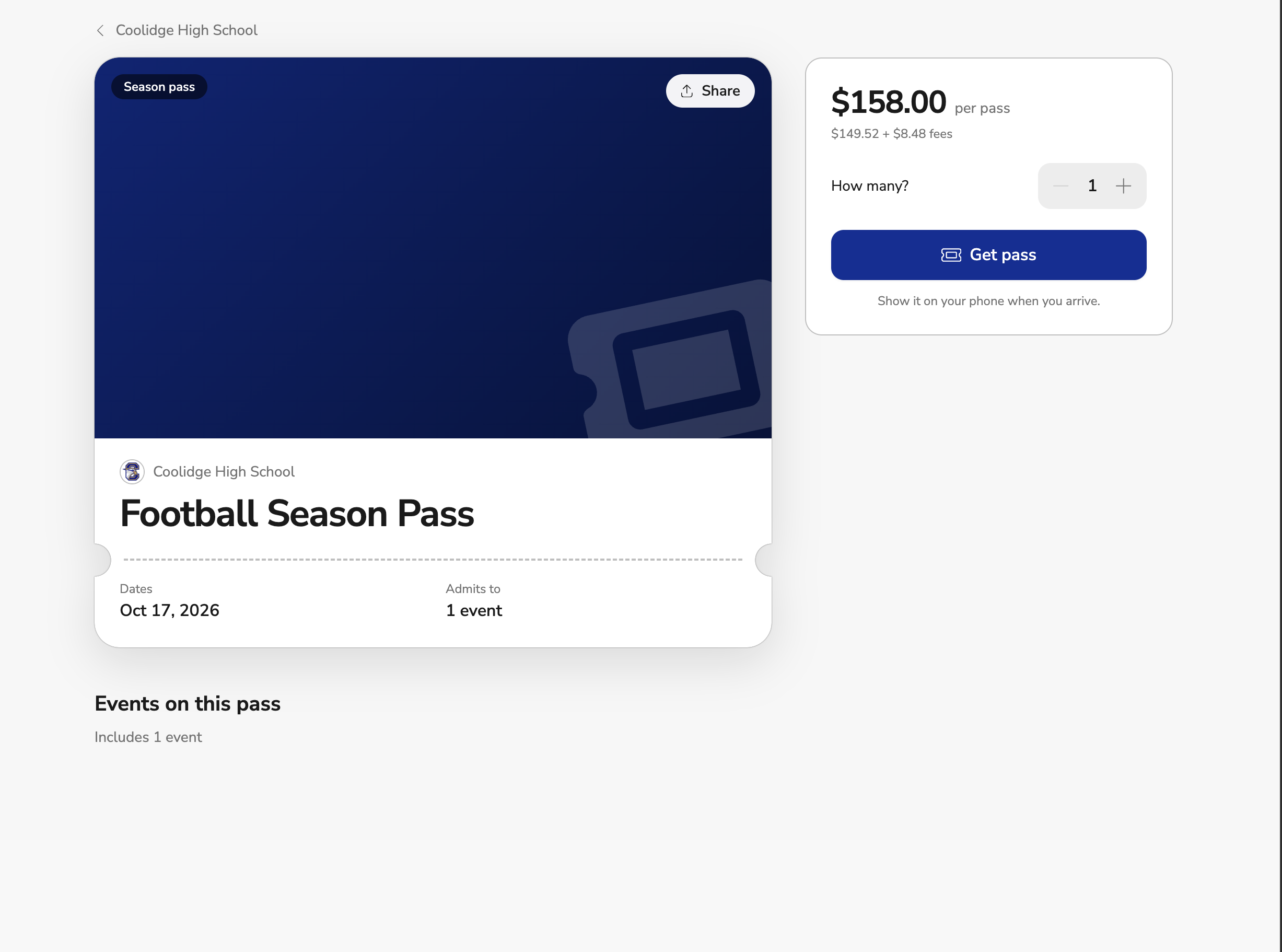
Clicking a pass opens its own page. The pass shows its dates and how many events it admits to. Beside it, buyers see the price per pass with the fees broken out, choose How many?, and click Get pass.
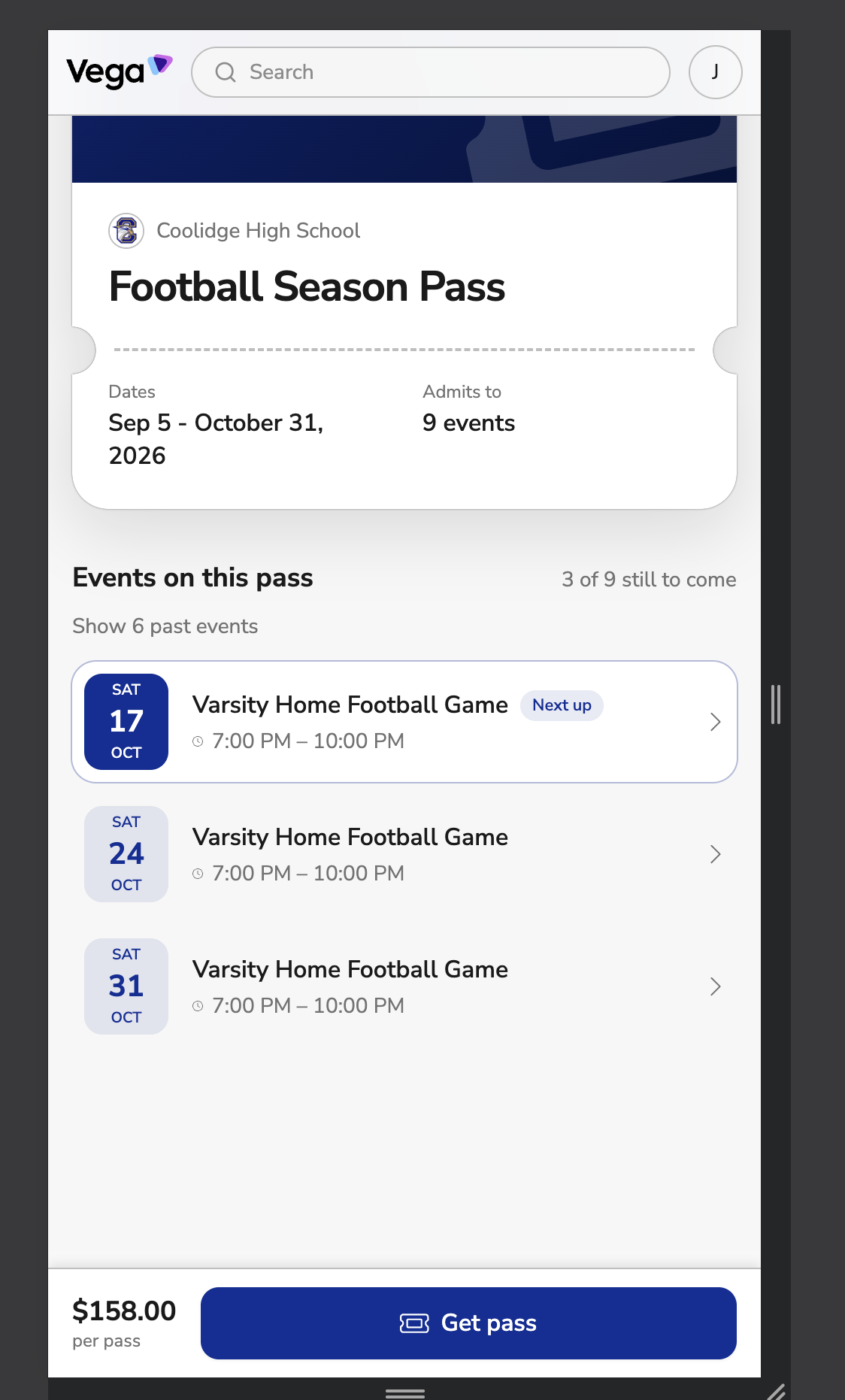
Events on this pass lists every date the pass covers, with the next one marked Next up. Once some dates have passed, they tuck behind Show past events. On a phone, the price and Get pass stay pinned to the bottom of the screen.
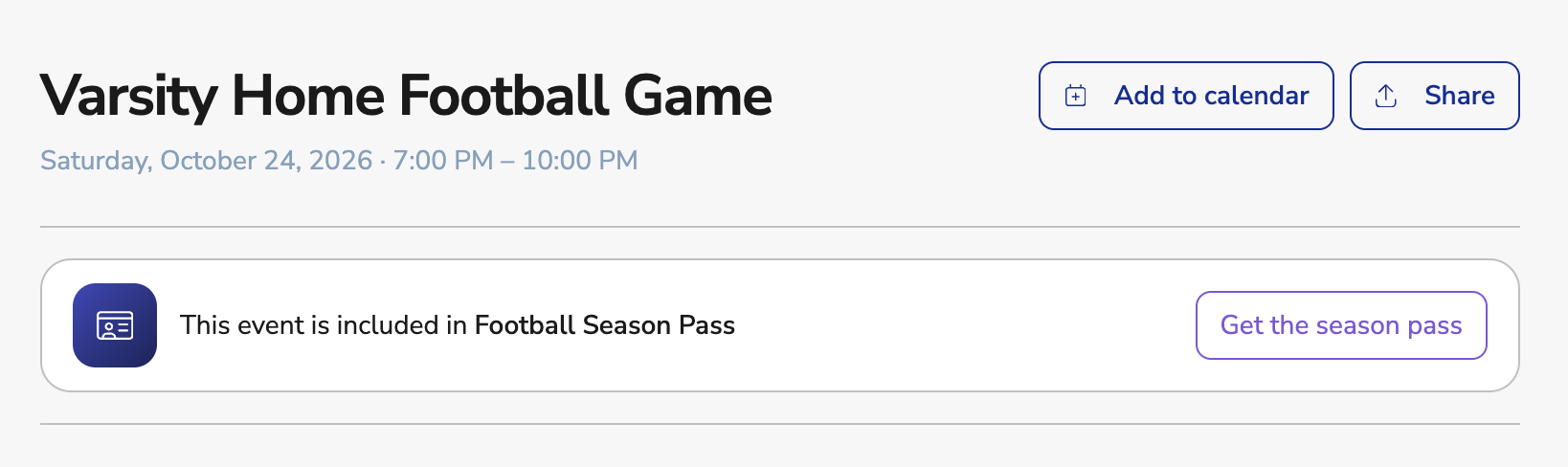
Events the pass covers also point to it. The event page says This event is included in and the pass name, with a Get the season pass button.
After buying, holders find the pass under Passes on their My Tickets page.
At the door
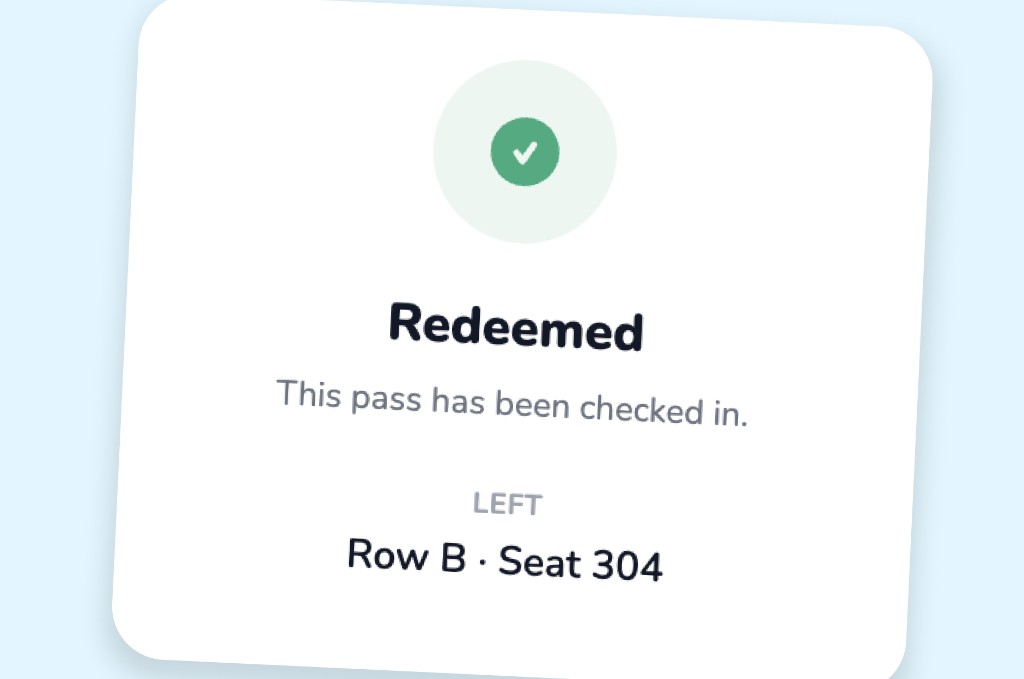
A check-in shows Redeemed and This pass has been checked in. If the pass has a seat, the door also shows the row and seat.
On the event, season pass check-ins are counted next to Redeemed, as + 1 season pass check-in (or the number of check-ins).