Set Up a Shop
Create a shop in Vega, add a cover image, choose where it appears, and turn on online ordering with pickup instructions.
A shop is one place you sell from, such as the school store, the snack shack or a merch table. Each shop carries products from your catalog, with its own prices and stock.
You need the Manage the shop or Approve/Manage Requests permission. If you don’t see Shop in the side menu, see Shop Overview.
Create a shop
- Click Shop in the side menu.
- Click New shop. On your first visit, the page shows Create your first shop with a New shop button.
- Enter a Name, such as “Snack Shack” or “Spirit Store”.
- Click Create shop.
The shop opens so you can finish setting it up. Changes save as you go. There is no Save button. The top of the page shows Saving… and then Changes saved.
Details
Under Details:
- Name. Required.
- Description. What the shop sells, its hours or location.
- Cover image. Click Upload image. You crop it to a wide 16:9 frame. It shows at the top of the shop’s page.
- Active. Turn this off to close the shop. Inactive shops are hidden everywhere public and can’t take sales.
Where it appears
Under Where it appears, choose where buyers find the shop:
- Public page. The shop shows on your public page’s Shop tab. It doesn’t appear on event pages.
- A group. Pick a group. The shop appears on every event that group hosts.
- Events. Pick the events whose pages should show this shop.
This only controls where buyers see the shop online. Registers can sell from any active shop.
Sells from is optional. Pick the space the shop sells from, so maps and work orders can find it.
Online ordering & pickup
Turn on Online ordering & pickup to let buyers order ahead and pay online, then collect in person.
When it’s on, fill in Pickup instructions. Tell buyers where and when to collect, for example: “Collect at the concession window by the north gate. Bring your order code.” Buyers see these on their order and in their emails.
When it’s off, the shop is in person only. It doesn’t show on your community page or event pages, and staff sell from it at the register.
Add products
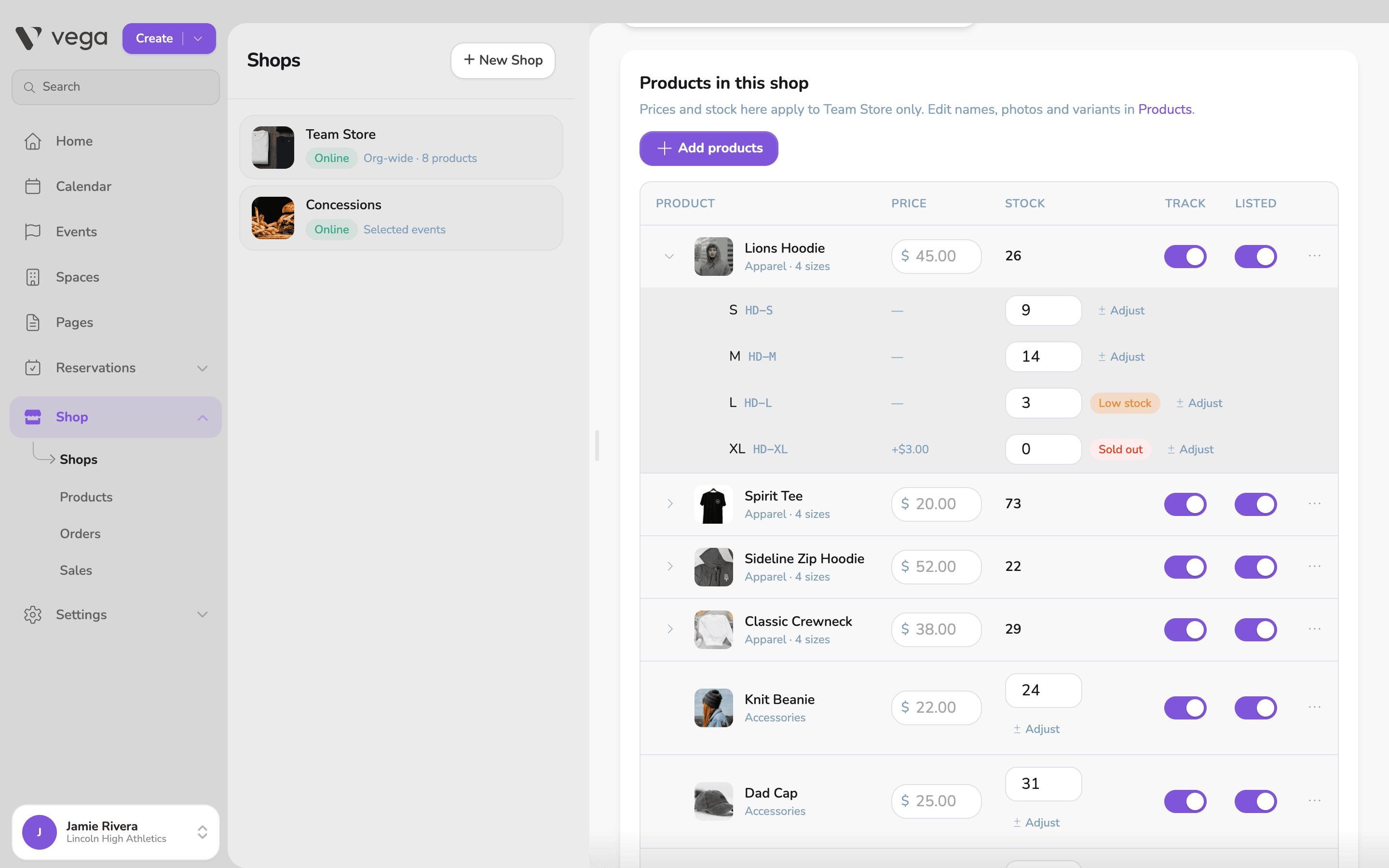
The Products in this shop table lists what the shop carries. Click Add products, pick products from your catalog, and click the add button. It counts what you picked, for example Add 3 products. If your catalog is empty, click New product first.
New products in a shop start at the catalog price with unlimited stock. To set a different price or count stock, see Products and Stock.
Sell and Redeem buttons
At the top of the shop:
- Sell opens the register for this shop. See Selling in Person.
- Redeem opens Orders filtered to this shop, ready for pickup. See Pickup.
Delete a shop
Click the more menu at the top of the shop, then Delete shop. Its products and stock levels in that shop are removed. Your catalog keeps the products, and past orders stay in Orders.