Selling Online
Where families find your Vega shop online, how ordering ahead works, guest checkout and wallet payments, and the confirmation and emails buyers get.
With online ordering on, families can order ahead, pay online and pick up in person. To turn it on, see Set Up a Shop.
A shop only shows online when it is Active, has Online ordering & pickup turned on, and has products in it.
Where families find it
- Your community page. Shops set to Public page show on a Shop tab. With one shop, the tab opens it directly. With several, buyers pick a shop from a list.
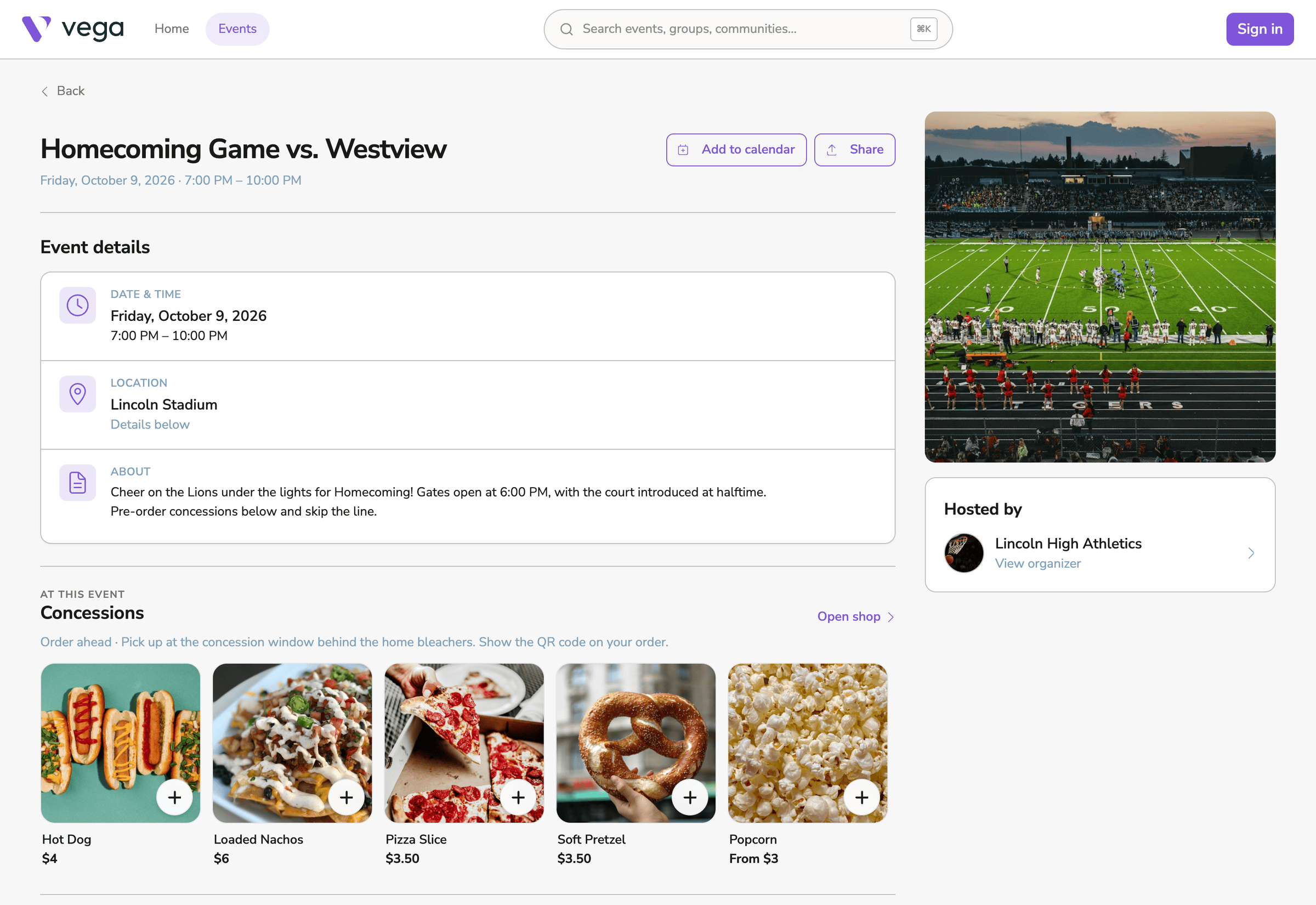
- Event pages. Shops set to A group or Events show on the matching event pages, in an At this event section with a row of products and an Open shop link.
- The shop’s own page. Every shop has its own page on the Vega site. Open it from your community page or an event page and copy the address from your browser. You can put it on flyers, in emails, or behind a QR code.
What buyers see
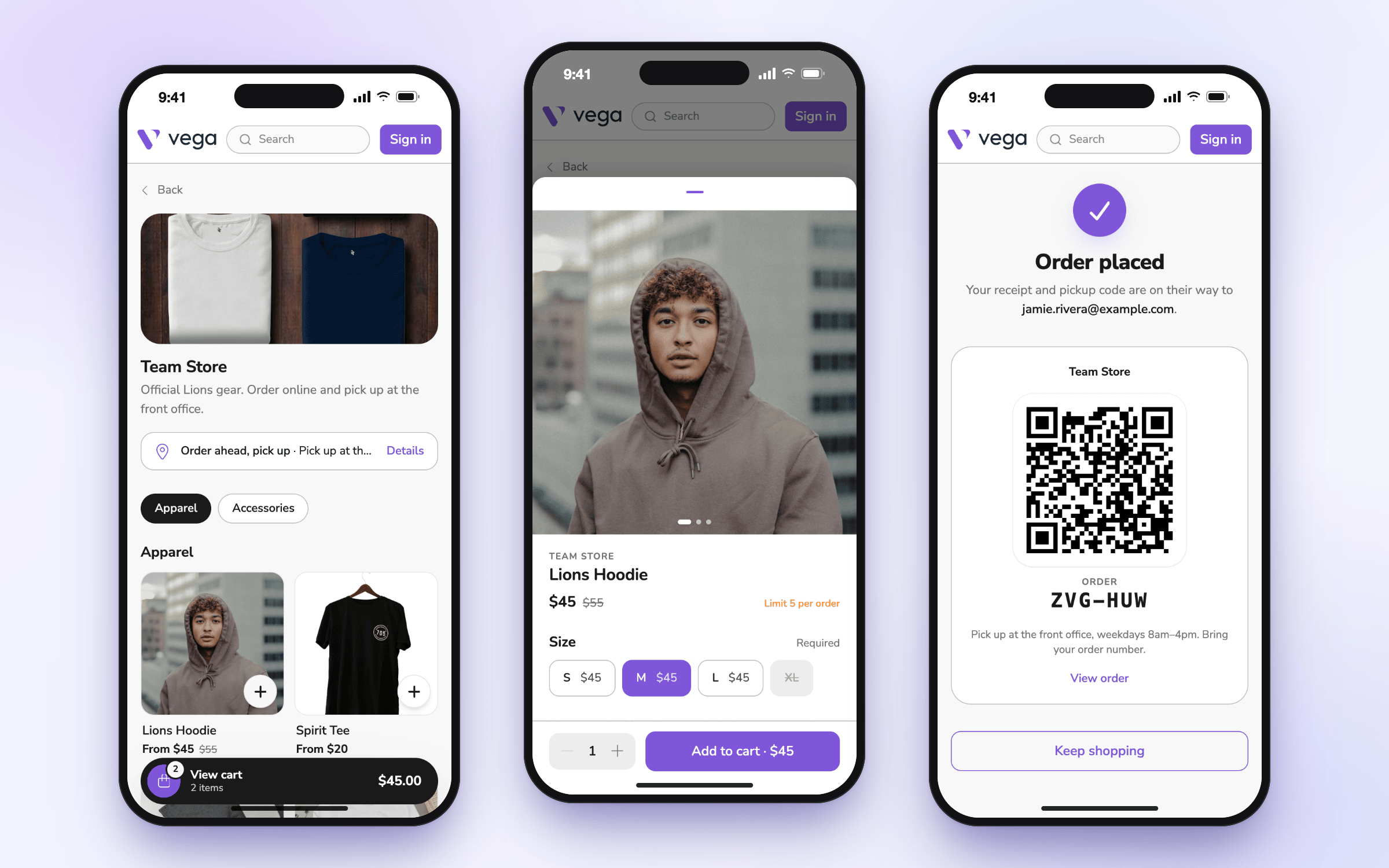
The shop page shows your cover image and description. If you wrote pickup instructions, an Order ahead, pick up strip shows them, with Details for the full text.
Products are grouped by category, with chips to jump between categories. Shops with more than 12 products also get a search box.
Buyers tap a product to see its photos, pick a size and any options, choose a quantity, and tap Add to cart. Compare-at prices show crossed out. Sold-out sizes can’t be picked.
One cart with tickets and passes
Shop items go in the same cart as tickets and passes from your organization. Buyers check out once and pay once.
A few limits apply:
- A cart can hold shop items from one organization at a time.
- Promo codes take money off tickets only, not shop items.
- Free tickets and free shop items can’t check out together. Buyers check out one, then add the other back.
- Card orders must total at least $0.50.
Checkout
Buyers don’t need a Vega account.
- Guests enter their Name, Email and an optional Phone, then click Continue to payment. Vega emails the receipt and pickup code to that address.
- Signed-in buyers skip the contact step.
Buyers can pay with Apple Pay, Google Pay, Link or a card. Payments go to your organization’s Stripe account.
Buyers pay the listed price, with no added fees. See How fees work.
Free orders. If everything in the cart costs $0, the button reads Place order and no card is needed.
For more on the buyer side of checkout, see Guest Checkout.
After the order
Buyers see Order placed. For each shop in the order, the page shows a QR code and an order number, such as K7Q-4MX, plus the first line of your pickup instructions. If the cart had items from two shops, the buyer gets a separate order and code for each shop.
Guests get a View order link. Signed-in buyers find their orders under My Orders in the account menu, with To pick up and Past tabs. Orders also show in their wallet, next to their tickets.
The buyer’s order page shows where it is: Paid, Ready for pickup, then Picked up.
Emails buyers get
Every email has a View your order button. Guests use it to open their order without signing in.
| When | Subject | |
|---|---|---|
| Order confirmation | Right after an online order | Your order number |
| Ready for pickup | When your staff mark the order ready | Your order number is ready |
| Receipt | When staff resend a receipt | Your receipt for order number |
Until the order is picked up, the emails include your pickup instructions and remind buyers to show the QR code or give their order number.
The ready email is sent once, the first time the order is marked ready. See Pickup.