Selling in Person
Ring up Vega Shop sales at the admin box office, on the S700 card terminal, or in the Vega app's Door mode, with card, cash, comp or free tenders.
Staff can sell shop items in three places. All three use the same catalog, prices and stock, so a hoodie sold at the gate comes off the same count as one sold online.
- The admin box office, in a web browser.
- The S700 card terminal.
- The Vega app, in Door mode.
Anyone who sells needs the Sell Tickets In Person permission. Comps also need Approve/Manage Requests. See Shop Overview.
A register can sell from any active shop, whether or not the shop shows online.
Tenders
| Tender | What happens |
|---|---|
| Card | The buyer pays on a card reader. The money goes to your Stripe account. |
| Cash | You enter the cash received, and the register shows the change due. No Vega fee. |
| Comp | The items are given away and no payment is taken. Only staff with Approve/Manage Requests see it. |
| Free | For an order that totals $0. Nothing to collect. |
Card orders must total at least $0.50.
Admin box office
Open the register
- For a shop: click Shop, open the shop, and click Sell. You can also click Sell on the Orders page. The register opens full screen and shows No event.
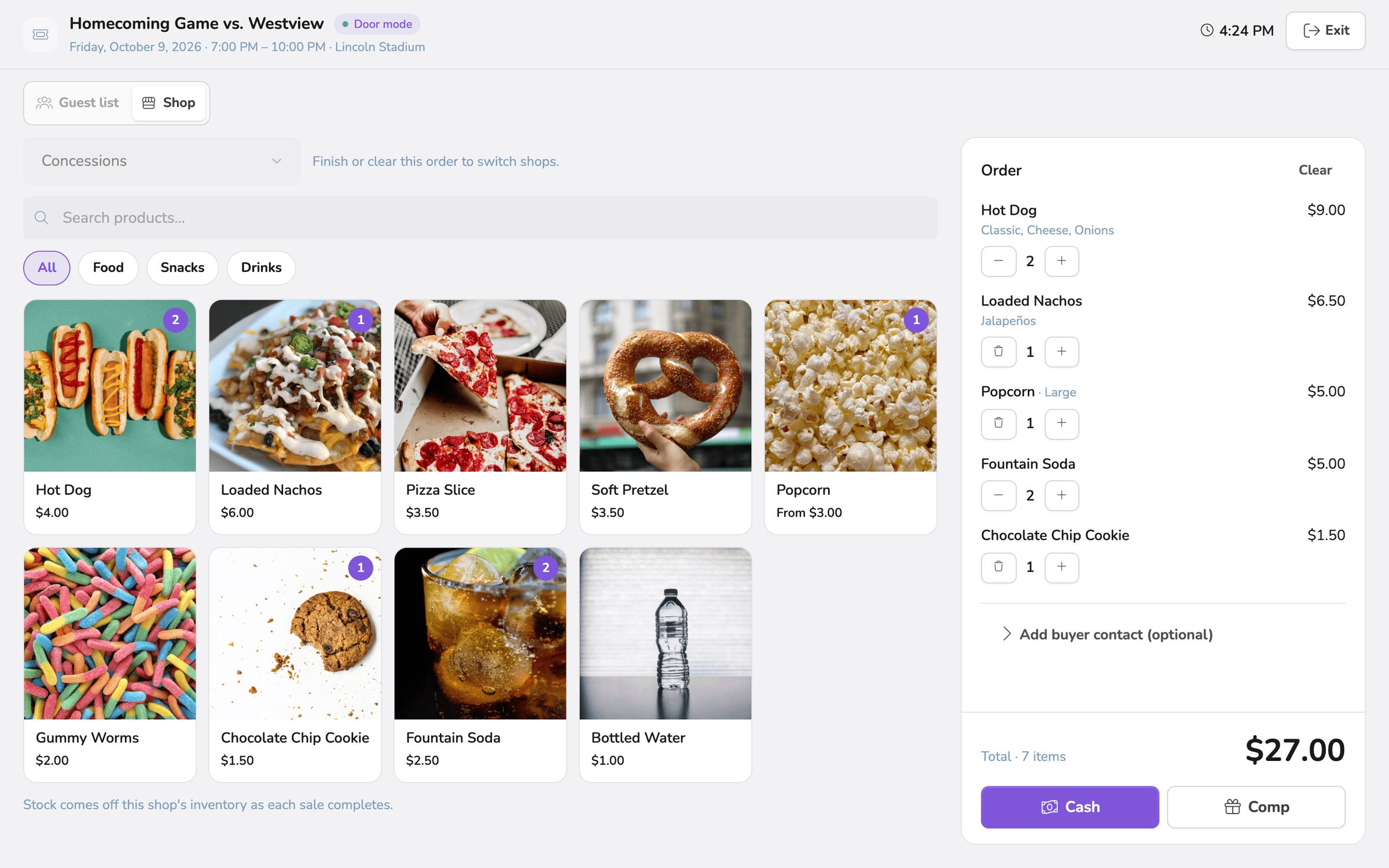
- At an event: open the event, click Door mode, and choose the Shop tab. Pick the shop from the menu at the top.
The Shop tab shows when Shop is on, you have Sell Tickets In Person, and the event can take sales.
Ring up a sale
- Tap products to add them. Use the search box or category chips to find them. A product with sizes or options opens a sheet. Make the choices, set the quantity, and add it.
- Check the order on the right. Use the plus and minus buttons to change quantities.
- Optional: click Add buyer contact (optional) and enter a Name and Email. Vega emails a receipt to that address.
- Choose a tender:
- Card. If no reader is chosen yet, the button reads Select a reader. Pick one, and the buyer pays on it.
- Cash. Enter the Amount tendered, or tap Exact. The panel shows the Change due. Click Record cash.
- Comp. Confirm with Comp order.
- Complete free order shows instead when the order totals $0.
Card payments at the admin box office need a registered card reader. See Register a Card Reader. Without one, you can still take cash and comps.
When the sale goes through, the register shows the total, any change due, and the order number. To email a receipt, enter an address under Email a receipt and click Send receipt.
Sales at the admin box office are recorded as picked up.
S700 card terminal
The S700 needs to be set up as a Vega card reader first, and each seller sets a POS PIN on it. See Register a Card Reader.
Open the register
- With no event: on the start screen, tap the Shop tile. With one shop, the tile shows the shop’s name and Sell merch & concessions · no event.
- At an event: tap Shop on the event’s screen.
If your organization has more than one shop, pick the shop from the list.
Ring up a sale
- Tap products to add them. Use the category chips to filter. A product with sizes or options opens a sheet. Make the choices and tap Add.
- Tap Review order.
- Under Payment, choose Card (Tap on this reader), Cash (Make change), Comp (No charge), or Free (Nothing to collect). Free is the only choice when the order totals $0.
- Leave Mark as picked up checked if the buyer takes the items now. Uncheck it to leave the order awaiting pickup, and hand it over later from Orders or Redeem. The terminal remembers your choice for the session.
- Optional: under Receipt, enter an email address in Email a receipt (optional).
- Tap the button to finish:
- Charge card, then the buyer taps their card on the terminal.
- Take cash, then enter the Cash received. Use Exact, $5.00, $10.00 or $20.00 for quick amounts. The screen shows the Change due. Tap Complete cash sale.
- Comp order.
- Complete free order.
The success screen shows the order number and any change due. If you left the order awaiting pickup, it shows a Mark picked up button for when the buyer has it. You can also send or resend a receipt from this screen. Tap New sale to start the next one.
Vega app (Door mode)
Open the register
Open Door mode in the Vega app. Then either:
- At an event: pick the event and tap the Shop tab. The tab shows when the event is active and at least one shop appears at it.
- With no event: tap a shop under Shops on the Door mode home screen.
Ring up a sale
- Tap products to add them. A product with sizes or options opens a sheet. Make the choices and tap Add.
- Tap Checkout.
- Optional: tap Add guest contact (optional) and enter a Guest name and an Email for the receipt.
- Choose Card, Cash or Comp:
- Card. Choose a reader. Tap to Pay on iPhone lets the buyer tap their card or phone on your iPhone. You can also use a Bluetooth reader or a smart reader. Tap Charge (the button shows the amount).
- Cash. Enter the cash received, then tap Record cash. The screen shows the change due.
- Comp. Tap the comp button. It counts the items, for example Comp 3 items.
- For a $0 order, tap Complete order.
After the sale, the app shows the order number and any change to give. To email a receipt, enter an address under Email a receipt and tap Send receipt. Tap New sale to start the next one.
Sales in the app are recorded as picked up.
Which register does what
| Admin box office | S700 terminal | Vega app | |
|---|---|---|---|
| Card, cash, comp, free | Yes | Yes | Yes |
| Leave a sale awaiting pickup | No | Yes | No |
| Hand over online orders | Yes, on Orders | Yes, with Redeem | Yes, with Redeem |
| Refund individual items | No | Yes | Yes |
For handing over orders, see Pickup. For refunds, see Orders and Refunds.
Receipts
Receipts are sent by email only. A register sale sends one only when staff enter an email address. There are no printed receipts.
You can resend a receipt for any paid order from the order’s details on the admin Orders page.