Products and Stock
Build your Vega Shop catalog: photos, prices, sizes and other variants, options and add-ons, categories, per-shop prices, and tracked stock.
Your catalog holds every product your organization sells. You create a product once, then stock it in any shop with its own price and count.
You need the Manage the shop or Approve/Manage Requests permission.
Create a product
- Click Shop, then Products.
- Click New product.
- Fill in the product details (below).
- Under Available in, check each shop that should sell it.
- Click Create product.
To change a product later, click it in the list, make your changes, and click Save product.
Product details
- Photos. Click Add photo. You can add up to 8. You crop each one to a square, since that’s how products show on the storefront and register. The first photo is the cover. Use the arrows to change the order.
- Name. Required.
- Description. Materials, sizing, what’s included.
- Price. Required. Enter 0.00 for a free item. Buyers see it as Free.
- Compare-at. Optional. It shows a crossed-out “was” price. It must be higher than the price.
- SKU. Optional.
- Max per order. How many one buyer can get in one order. 0 means no limit. Online, buyers see Limit 5 per order (or your number).
- Category. Pick one, or choose + New category… to add one.
- Active. Turn this off when you stop selling the product, instead of deleting it.
Under the price, Est. your payout shows what you receive on a card sale. Click Show fee breakdown for the details. See How fees work.
Variants
Use variants for one choice the buyer must make, where each choice has its own stock, such as sizes.
- Turn on Variants.
- In Shown to buyers as, enter the name of the choice, such as “Size”.
- Add a row for each choice, with a Name, an optional SKU, and an optional Price +/−. For example, enter 2.00 to charge $2 more for an XXL.
- Click Add size (the button uses your choice name) for more rows.
A product can have one variant choice. Stock is counted per variant in each shop.
Options & add-ons
Use options for choices that don’t have their own stock, such as toppings or a name print.
- Under Options & add-ons, click Add group.
- Enter a Group name, such as “Toppings”.
- Choose how many buyers can pick:
- Pick one. Buyers must pick exactly one.
- Optional. Buyers can pick any of these, or none.
- Custom. Set a Min and Max.
- Click Add option for each choice. Give it a name and an optional price change.
Categories
Categories group your products on storefronts and registers.
On the Products page, click Categories. You can add, rename, delete and reorder categories. Buyers and staff see them in the order you set.
Stock a product in a shop
Each shop has its own price and stock for each product. Open the shop from Shop and scroll to Products in this shop.
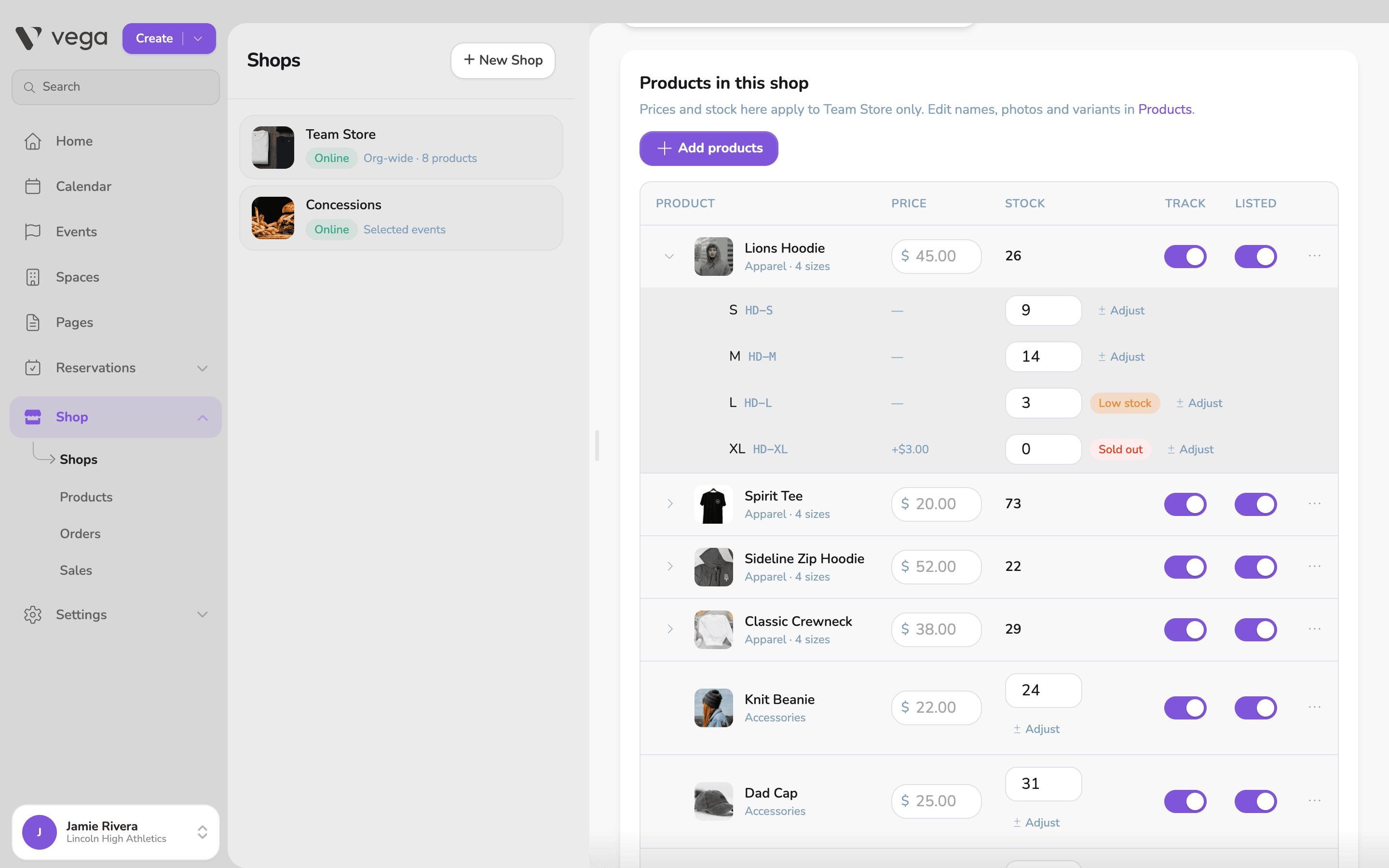
- Price. Leave it blank to use the catalog price. Type a different price to charge something else in this shop only. The catalog price then shows underneath.
- Track. Turn this on to count stock. When it’s off, the stock shows Unlimited.
- Stock. Type the number on hand. For a product with variants, click the arrow next to it to set each variant’s count.
- Listed. Turn this off to stop selling the product in this shop without removing it.
To remove a product from one shop, open the more menu on its row and click Remove from shop. Its stock count in that shop is cleared. The product stays in your catalog.
Receive or remove stock
To add a delivery or take out damaged items without retyping the count:
- Click Adjust next to the stock count.
- Choose Receive or Remove.
- Enter the Units and a Reason, such as “New shipment” or “Damaged”.
- Check the New count, then click Receive stock or Remove stock.
Low stock and sold out
- Low stock shows when 5 or fewer are left.
- Sold out shows at 0.
Buyers see Only 3 left (or the number) when few are left, and Sold out when none are left. Sold-out sizes can’t be picked. The registers also mark items that are low or sold out.
Stock comes off when a sale is paid, online or in person, and a register can’t sell more than the shop has.
On the Products page, the Stock column is the total on hand across the shops that carry the product. A dash in that column means at least one shop sells it without tracking stock.
Show products on a page
If your organization uses Pages, you can add a Products block to a page.
- Products from. Choose Shop, Category or Picked (products you choose one by one).
- Layout. Choose Grid or Carousel.
- Limit. How many products to show.
Only products from shops with online ordering turned on appear on the published page.