Pickup
Hand over Vega Shop orders at the counter: pickup codes and order numbers, marking orders ready, finding orders in the admin, on the S700 and in the Vega app.
Online orders are picked up in person. The buyer shows a QR code or gives their order number, and your staff hand over the items and mark the order picked up.
Handing over orders needs the Sell Tickets In Person, Manage the shop or Approve/Manage Requests permission.
Pickup codes and order numbers
Every order gets an order number, such as K7Q-4MX, and a QR code. Buyers find both on their confirmation page, on their order page, and through the View your order link in their emails.
Order numbers skip characters that look alike, such as 0 and O, or 1, I and L. When you type one, capitals, spaces and the dash don’t matter. k7q 4mx finds K7Q-4MX.
If a buyer ordered from two shops at once, they get a separate order number for each shop. Each shop hands over its own order.
Mark an order ready
When an order is packed and waiting, mark it ready. Vega emails the buyer that their order is ready for pickup.
- Click Shop, then Orders.
- Open the order.
- Click Mark ready.
The buyer’s order page then shows Ready for pickup. The email is sent once, the first time you mark the order ready. Marking ready is optional. You can hand over an order that was never marked ready.
Mark ready is in the admin only. It isn’t on the S700 or in the Vega app.
Hand over an order in the admin
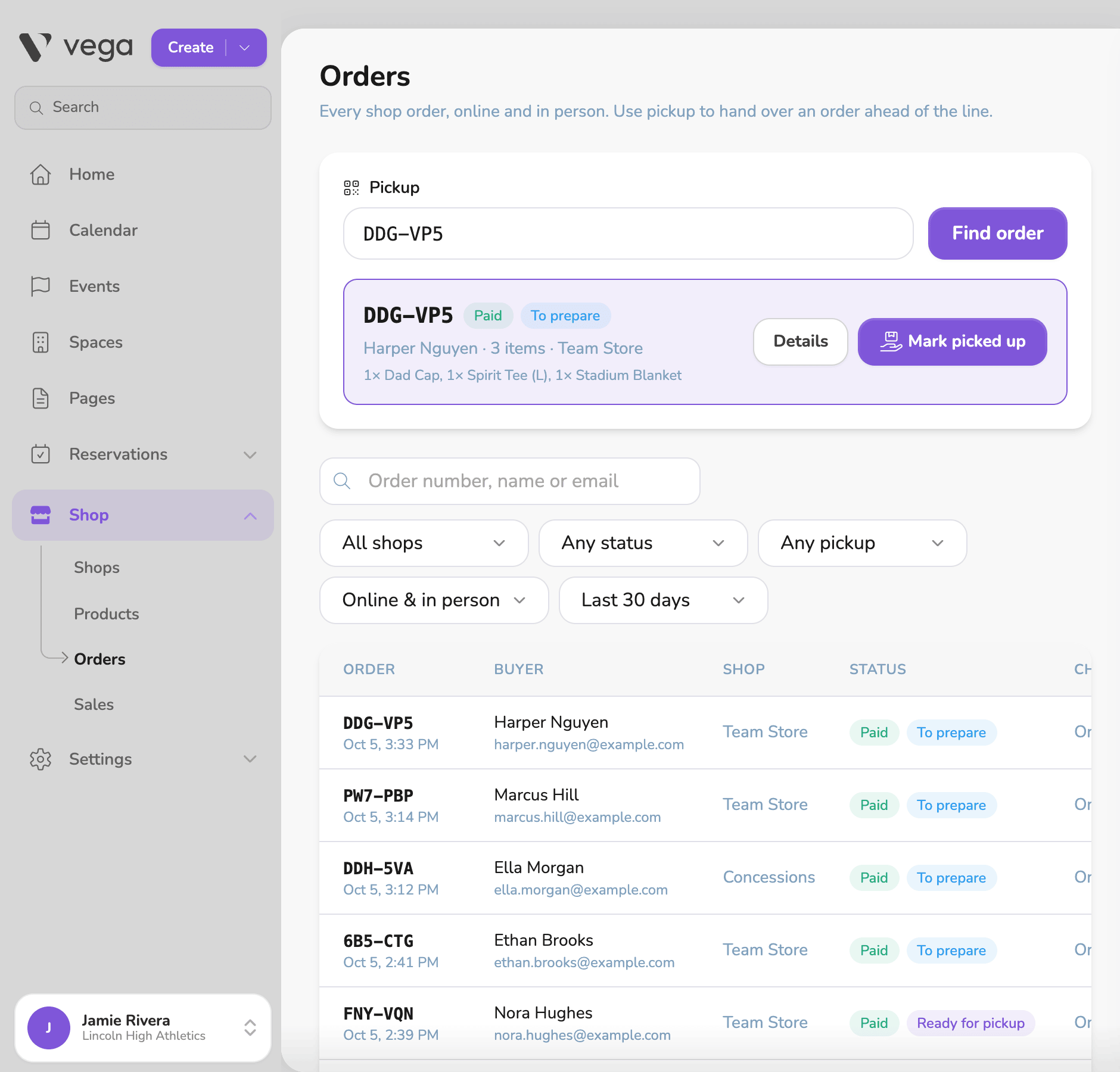
The Pickup box sits at the top of the Orders page. A shop’s Redeem button opens this page filtered to that shop.
- Click Shop, then Orders.
- In Pickup, type the order number, or click Scan to read the buyer’s QR code with your computer’s camera. A USB barcode scanner also works.
- Click Find order. Vega shows the order’s status, the buyer, and the items.
- Hand over the items, then click Mark picked up.
- Already picked up means someone has handed it over already.
- If the order isn’t paid, there’s no Mark picked up button. Don’t hand it over.
- If the page is filtered to one shop and the order belongs to another, Vega tells you which shop it’s from, so you can send the buyer there.
You can also open any order and click Mark picked up in its details.
Hand over an order on the S700
- In the shop’s register, tap Redeem.
- Type the order number and tap Find. The S700’s camera can’t be used for scanning, so type the number.
- Check the slip:
- Ready for pickup. Hand it over.
- Already picked up. It was handed over already. The slip shows when.
- Not paid. Don’t hand it over.
- Refunded or Voided. Don’t hand it over.
- Another shop’s order. Send the buyer to that shop.
- No match. Check the number with the buyer.
- Tap Hand over order.
If some items on the order were refunded, the slip says how many and tells you to hand over only the rest.
To find an order by the buyer’s name or email instead, tap Orders in the register and search. Open the order and tap Mark picked up.
Hand over an order in the Vega app
- In Door mode, tap Redeem. It’s next to the shop name on the Shop tab, and on each shop under Shops on the Door mode home screen.
- Scan the buyer’s QR code with the camera, or type it in Order number and tap Find.
- Check the slip. It shows the order’s status and items, and warns you if the order isn’t paid, was refunded or voided, was already picked up, or belongs to another shop.
- Tap Hand over.
On a partly refunded order, the slip status reads Partly refunded, and each item line shows how many were refunded. Hand over only what’s left.
Partly refunded orders
When some items on an order are refunded, the rest can still be handed over. Use the S700 or the Vega app for these orders. The slip shows what was refunded, so you hand over only the rest.
OmniPass pickup
If your organization uses OmniPass and has a pickup checkpoint for the shop, staff can scan a buyer’s OmniPass instead of a pickup code. Vega finds that person’s orders and lets you hand them over together with Hand over 2 orders (or the number ready). This works in the Pickup box on the admin Orders page and on Redeem in the Vega app. Staff also need a permission that lets them scan.