Orders and Refunds
Find and review Vega Shop orders, export them, resend receipts, refund whole orders or single items, put stock back, and void unpaid orders.
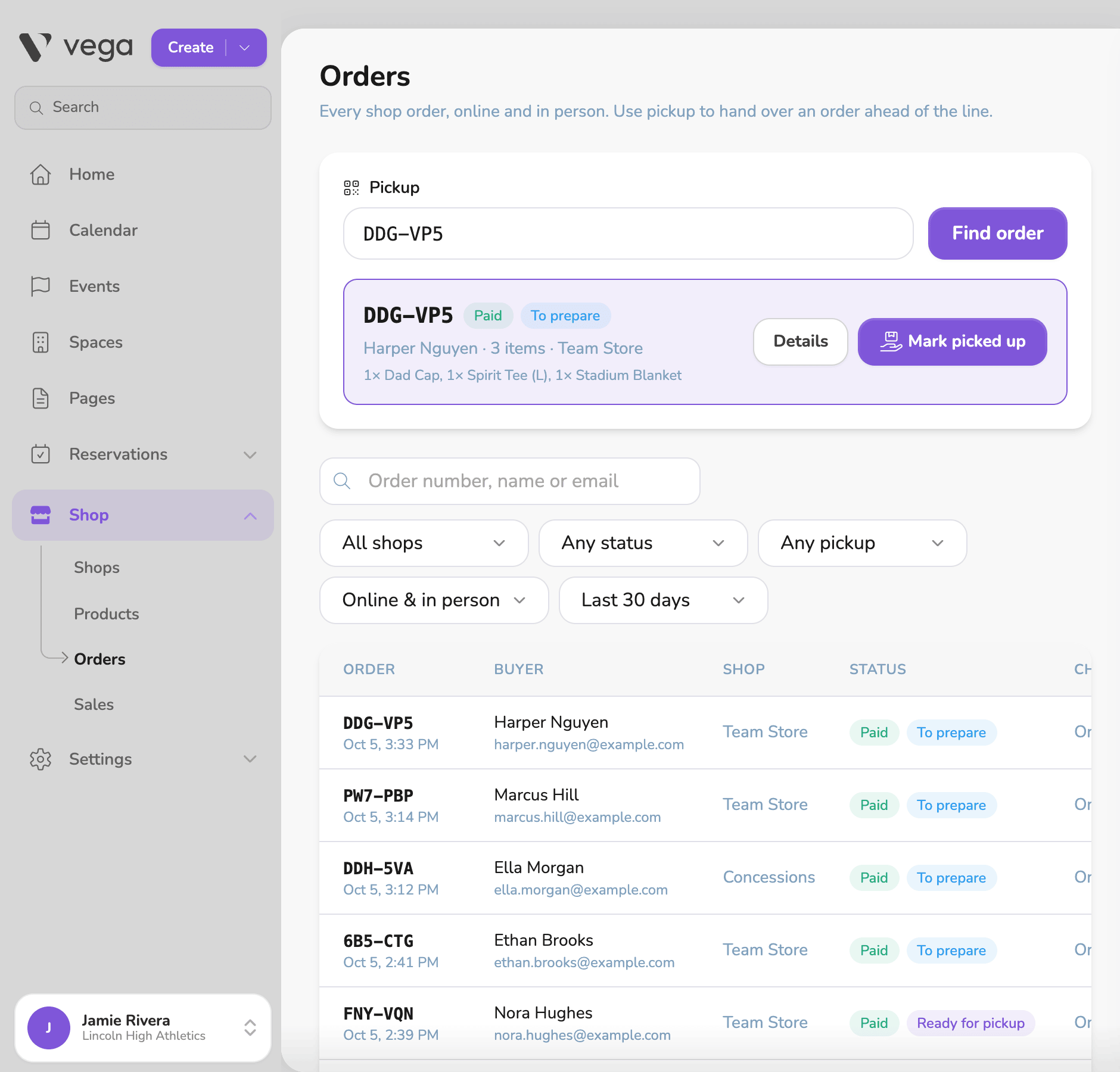
The Orders page lists every shop order, online and in person. Click Shop, then Orders.
Staff with Sell Tickets In Person, Manage the shop or Approve/Manage Requests can open it.
Find an order
Use the search box to find an order by order number, buyer name or email.
Narrow the list with the filters:
- Shop. One shop, or All shops.
- Status. Paid, Pending (not paid yet), Refunded or Voided.
- Pickup. To prepare, Ready or Picked up.
- Channel. Online or In person.
- Date. Today, Last 7 days, Last 30 days, Last 90 days or All time.
The list loads 50 orders at a time. Click Load more at the bottom for the next 50.
Order details
Click an order to open its details:
- Items, with the Subtotal and Total. On card orders, the Vega fee shows as included in the total.
- Buyer: name, email and phone, if given. Walk-up sales without contact details say so.
- Payment: the method (Card, Cash, Comp or Free). Cash orders also show Cash received and Change. Refunded amounts show here too.
- Timeline: when the order was Ordered online or Sold in person, Marked ready, Picked up, Refunded or Voided.
From the details you can also Mark ready and Mark picked up. See Pickup.
Resend a receipt
On a paid order, the Receipt section shows the buyer’s email. Change it if needed, and click Resend receipt. A new address is saved as the buyer’s email on that order.
Export orders
Click Export CSV to download a spreadsheet of orders. It has one row per order, with the order number, date, buyer, email, shop, status, pickup, channel, tender, items, subtotal, fee and total.
The export includes only the orders loaded on the page, with your filters applied. To export more, click Load more until every order you need is on the page, then export.
Refund a whole order
Refunds need the Manage the shop, Approve/Manage Requests or Issue refunds permission. You can refund paid orders.
- Open the order on the Orders page.
- Leave Put the items back in stock checked if the items are coming back to the shelf. Uncheck it if they were damaged or not returned.
- Click Refund and the amount.
- A Refund order panel lists what was paid for together, such as this shop order and any tickets or passes from the same checkout. Check what to refund, or Select all.
- Review the refund, then confirm with the Refund button.
What happens to the money depends on how the buyer paid:
- Card. The money goes back to the buyer’s card through Stripe.
- Cash. Vega records the refund. Hand the cash back to the buyer from your cash drawer.
- Comp or free. No money moves. The order is marked refunded.
The admin refunds whole shop orders. To refund only some items, use the S700 or the Vega app.
Refund individual items
On the S700 and in the Vega app, you can refund some items on an order and leave the rest. The order shows as Partly refunded. The items that are left can still be handed over or refunded later.
On the S700
- Open the order. In the register, tap Orders, search for the order, and open it. You can also tap Refund this sale right after a sale.
- Tap Refund items.
- Use the steppers to choose how many of each item to refund, or tap Select all.
- Leave Put the items back in stock on, or turn it off if the items aren’t going back on sale.
- Tap the button to finish. It reads Refund $X to the card for card orders and Give $X back from the drawer for cash orders. For comp and free orders, nothing is given back.
In the Vega app
- In Door mode, open Redeem for the shop and find the order by its QR code or order number.
- Tap Refund items.
- Choose how many of each item to refund, or tap Select all.
- Leave Put the items back in stock on, or turn it off.
- Tap Refund $X to the card or Give $X back from the drawer, then confirm.
Putting stock back
Refunds put the items back in stock by default, so they can be sold again. Uncheck Put the items back in stock when the goods were damaged or not returned. Only the refunded items go back.
Void an unpaid order
An order that was never paid shows as Pending. Instead of refunding it, void it:
- Open the order.
- Click Void order and confirm.
Voiding cancels the order. It never took stock, so nothing goes back. Voiding needs the Manage the shop or Approve/Manage Requests permission.