Teams and Fundraising Pages
Set up teams with goals and leads, choose who sees the standings, add a team prize, let people start their own fundraising pages, review pages before they go live, and invite people to fundraise.
Your community will ask for you, if you let them. A grandparent gives faster to a player they love than to a booster club. Teams and fundraising pages turn every family, class and roster into fundraisers, all counting toward one goal.
Teams
Teams are groups raising toward the shared goal, each with its own goal and lead: grades, classes, sports teams or booster groups.
- Open the campaign in the editor and go to Teams.
- Add each team with its goal and lead.
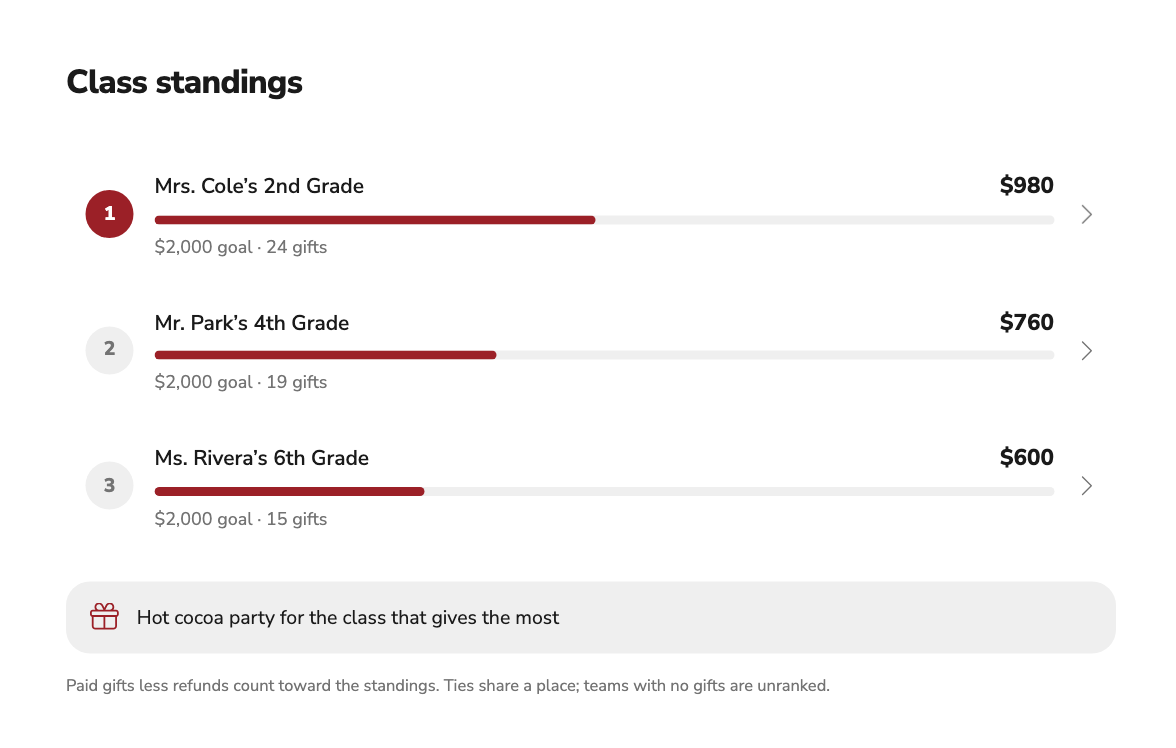
- Under Competition, choose who sees the rankings:
- Public. Anyone on the giving page sees how teams and participants rank.
- Staff only. Rankings are hidden from the public. Staff and team leads still see them.
- Off. Nobody is ranked. Teams and participants see only their own totals.
- Add a Team prize if you like, such as “Pizza party for the top team”. A prize gives the last week of a campaign a real finish line.
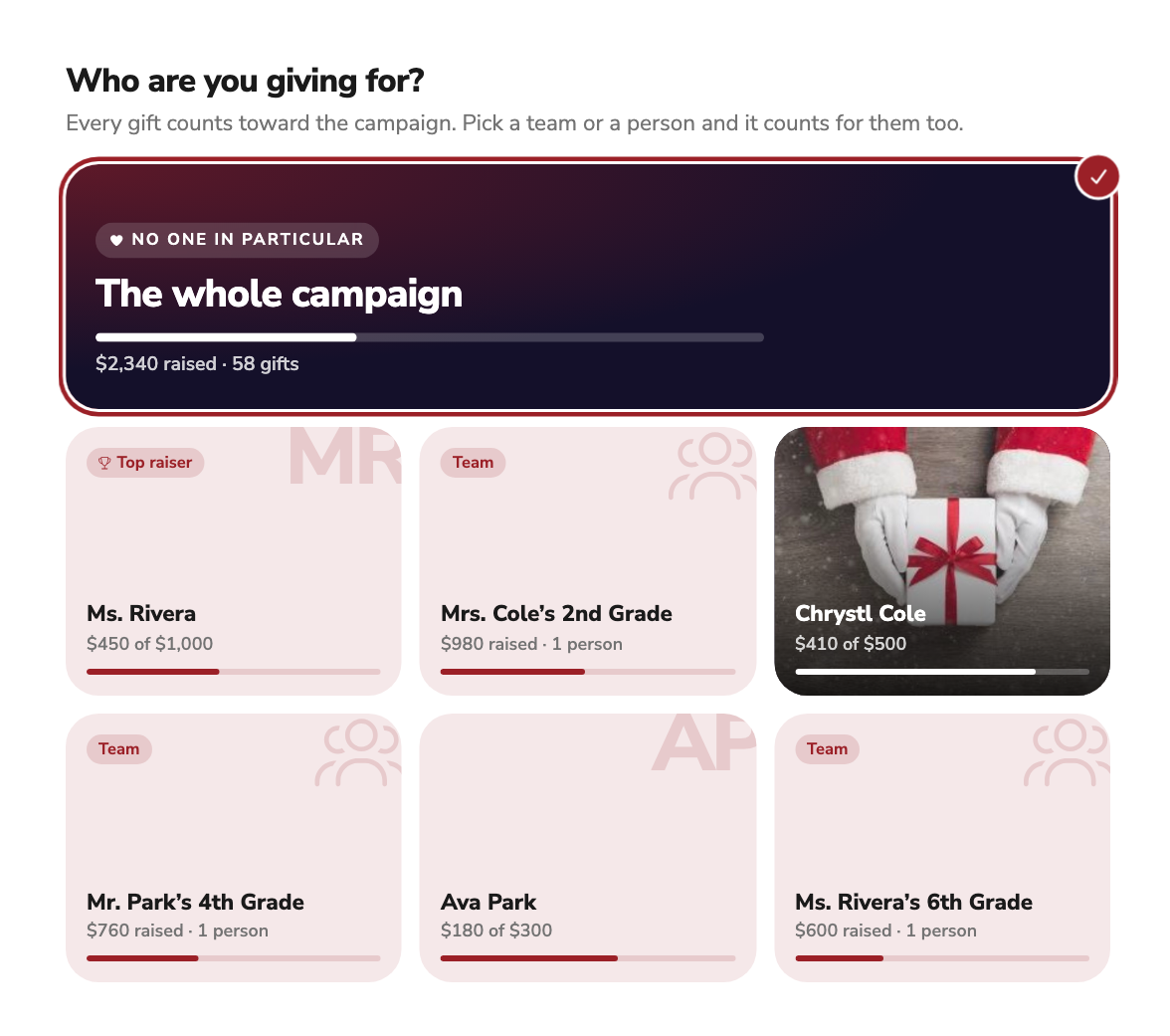
Donors pick a team or a person when they give, and the gift counts for both them and the campaign.
Fundraising pages
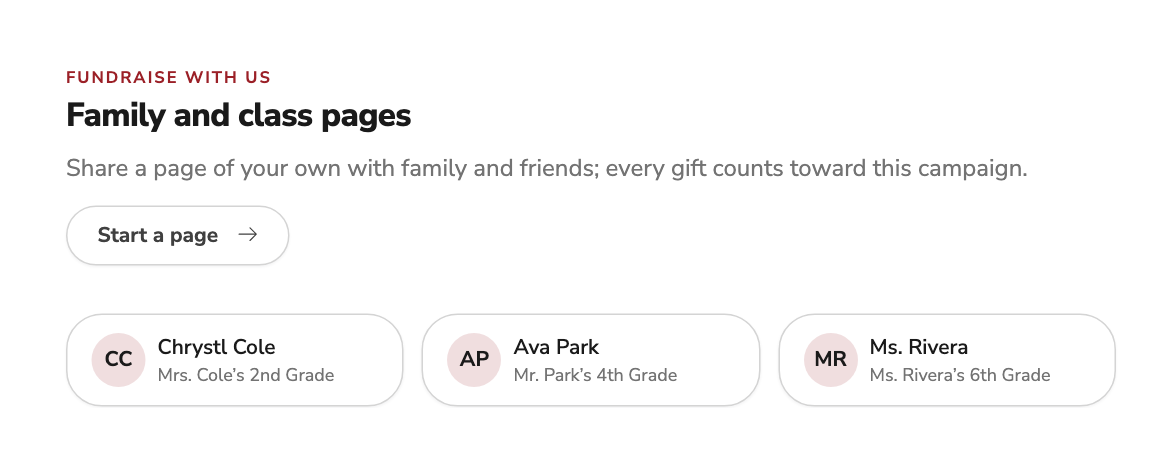
A fundraising page is a person’s own page for your campaign, with their goal, their progress and who has given. People share it with family and friends.
- Open the campaign in the editor and go to Fundraising pages.
- Turn fundraising pages on.
- Choose your options:
- Review first. You approve each page before it goes live.
- Public standings. Rank public pages on the campaign.
- Pages close. When pages stop taking gifts. Leave it blank to close them with the campaign.
People start a page from the Start a page button on your campaign page.
Review pages
When Review first is on, new pages wait for you in the campaign’s Fundraising pages list. Open a page’s actions to Approve page, Reject page or, later, Archive page.
Invite people to fundraise
Open the campaign from Donations → Campaigns, and in its teams section click Invite to fundraise. Invite everyone in a team’s linked group, or type Email addresses for anyone else, and add an optional Message. People get an email with a link to start their page.