Create a Campaign
Create a Vega donation campaign: name and web address, story and photo, goal and dates, stretch rewards, suggested gifts, monthly giving, fee coverage, dedications, thank-you note and receipts, then publish.
A campaign is a fundraiser with its own donate page: the holiday drive, the new scoreboard, the spring trip. The best campaigns have three things: a clear goal, a story people can picture, and suggested gifts that say what each amount does. Vega gives you a place for all three.
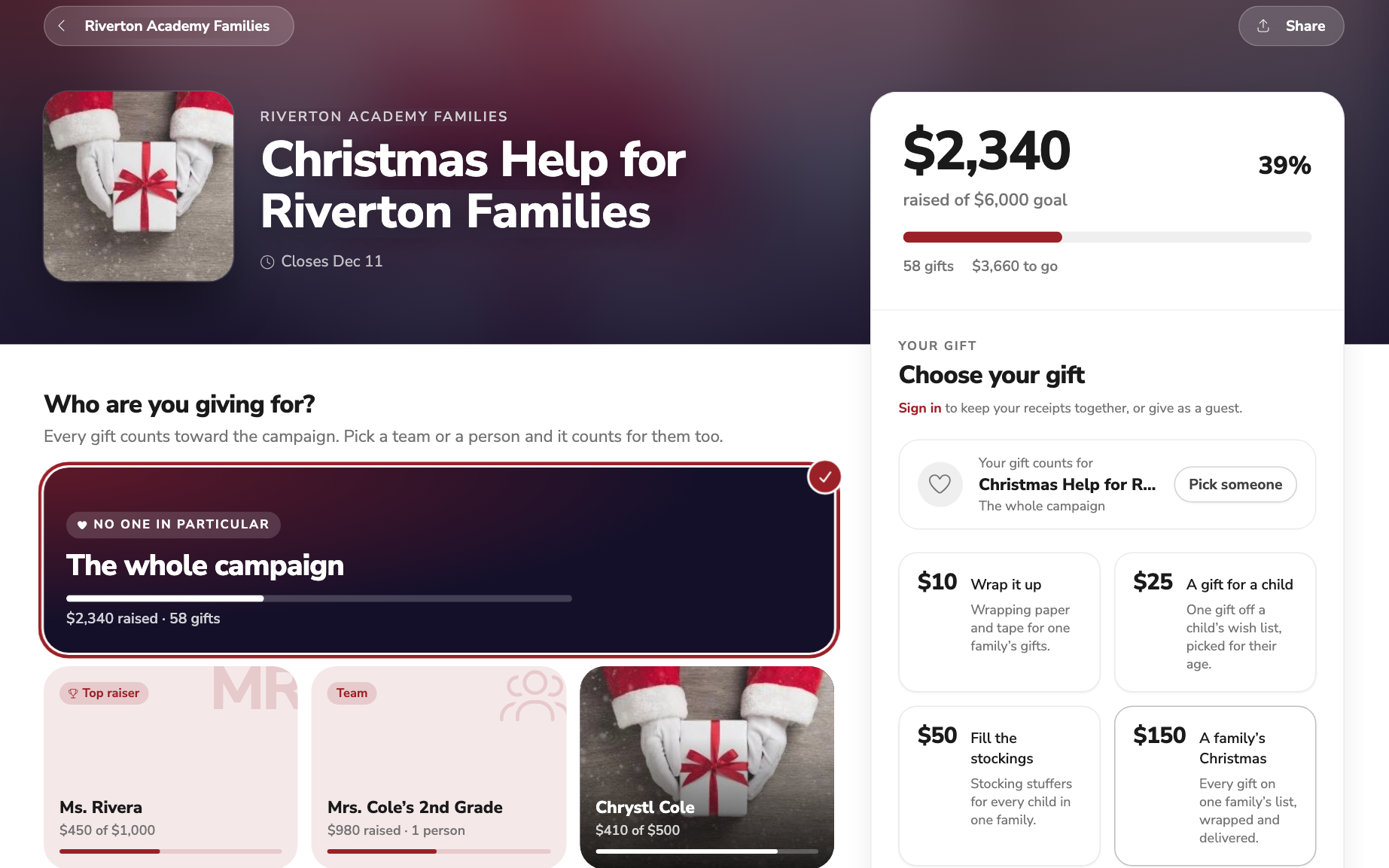
Start a campaign
- Go to Donations → Campaigns and click New campaign.
- Enter a Name, like “2026 Annual Fund”.
- Check the Web address. It’s the end of your campaign’s link, and it uses lowercase letters, numbers and hyphens.
- Click Create campaign.
The campaign opens in the editor. Your changes save as a draft as you go. Nothing is public until you publish.
The editor, section by section
The sections down the left side of the editor walk you through the campaign. The Preview on the right shows the page as donors will see it.
Page
The campaign’s name, its web address, and the page donors see. Add a story and a photo. Tell people who the money helps and what it makes possible, in a few short paragraphs.
Goal & dates
- Goal. The amount the progress bar counts toward. Leave it blank for no goal.
- Opens and Closes. When the campaign takes gifts. Leave Closes blank to keep it open until you end it yourself.
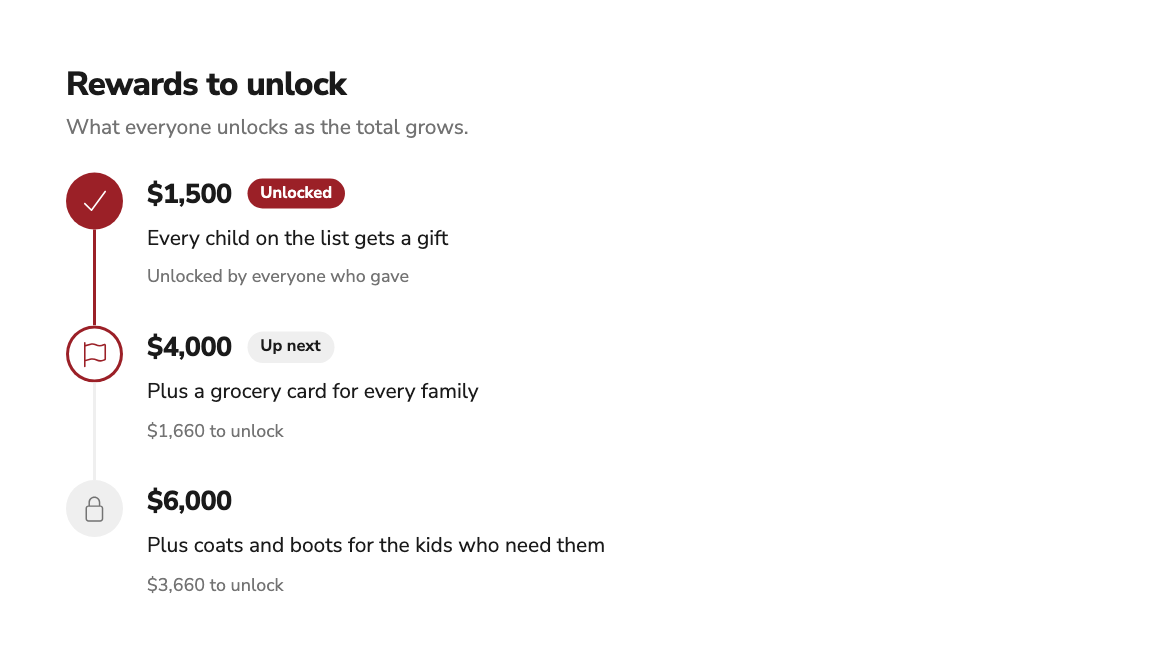
- Rewards. What everyone unlocks as the total climbs, like “Every child on the list gets a gift” at $1,500. Rewards are a great way to keep momentum after the first big week.
Teams
People raising toward a shared goal, each team with its own goal and lead: grades, classes, rosters or booster groups. You also choose who sees the rankings under Competition, and can add a Team prize. See Teams and Fundraising Pages.
Ways to give
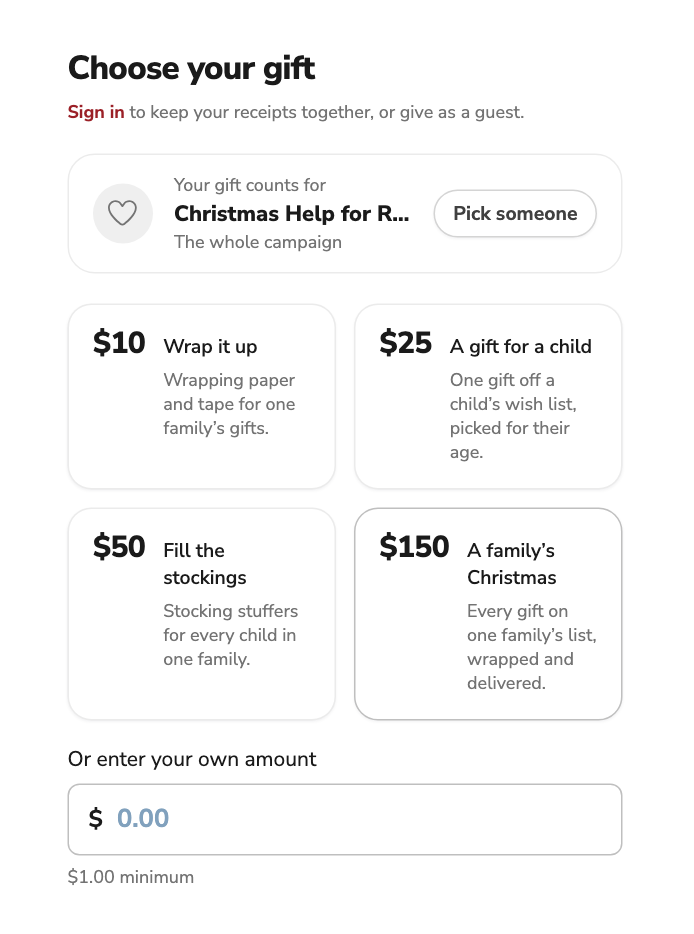
What donors pick from when they give.
- How often donors can give. One-time, monthly or yearly.
- Suggested gifts. The amounts donors tap, in the order they see them. Give each one a short label and a line about what it does. “$25: a gift for a child” raises more than “$25”.
- Any amount. Let donors type their own amount, with a smallest and largest gift.
- Cover the fees. Donors can add the card fee so you keep the full gift. Choose whether the box starts checked (Donors opt out) or unchecked (Donors opt in).
- Dedications. Let donors give in honor or in memory of someone, and optionally email the honoree.
Fundraising pages
Let people raise money with a page of their own. See Teams and Fundraising Pages.
After the gift
The thank-you donors see and the receipt they keep.
- Thank-you note. Shown on the thank-you page right after a gift.
- Then go to. Optionally send donors to another page after they give.
- Tax receipts. The Legal name, EIN and Receipt footer for this campaign’s receipts. Leave them blank to use your Nonprofit profile.
Publish
The Before you publish checklist shows what’s left. When it says Ready to publish, click Publish. The donate page goes live and starts taking gifts.
After a campaign is live, edits save as a draft until you click Save changes, so you can work on the page without donors seeing half-finished changes.
End a campaign
A campaign with a Closes date stops taking gifts on that date. A campaign with no closing date has an End campaign button on its page. It asks first, then closes the campaign the same way a closing date would.
Receipts, totals and gift records stay after a campaign ends.