Setting Up Your Community Page
Launch your Vega Community Page: custom URL, schedule, events list, and settings so people can discover games, shows, and fundraisers in one place.
Watch this walkthrough
All videos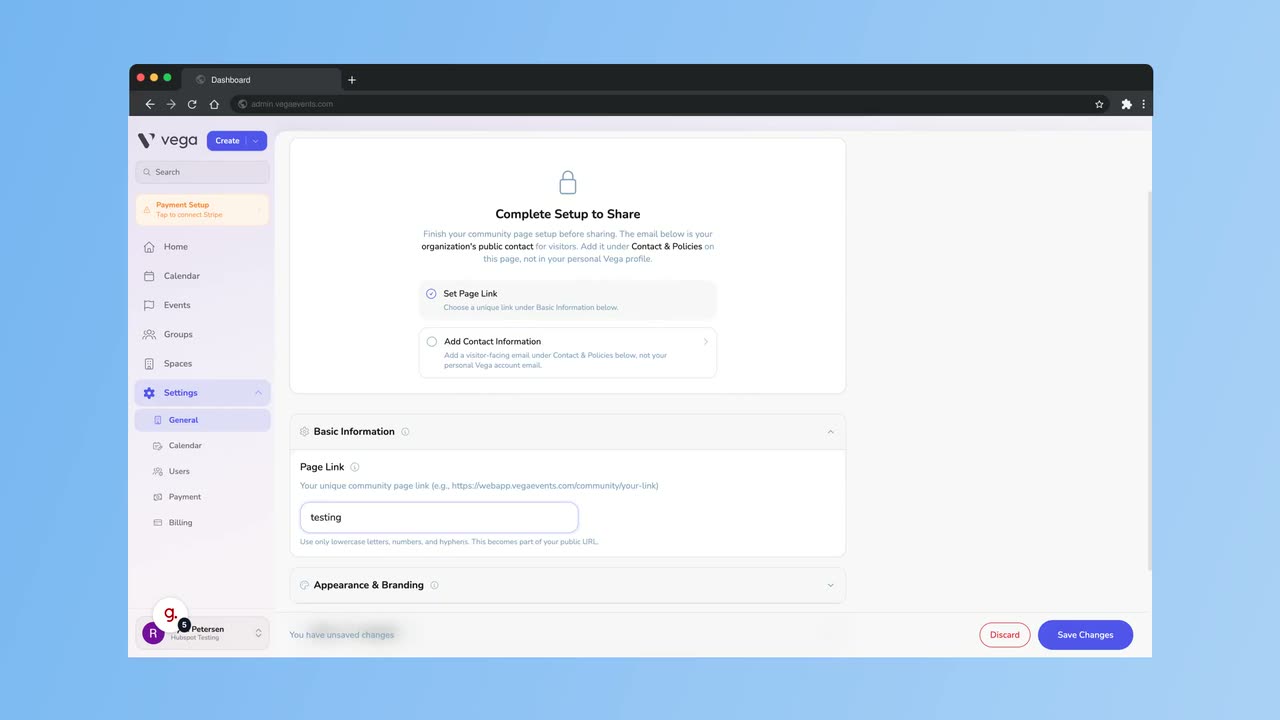
Your Community Page is the public-facing hub where attendees discover your events, learn about your organization, and purchase tickets. Setting it up is one of the first things to do after creating your Vega account.
Accessing Community Page Settings
Go to Settings > Public Page, which walks you through five steps: Overview, Branding, Links, Contact & Tickets, and Share & Embed. Each step saves on its own and shows a green checkmark once complete, so you can leave and come back. (Your organization name, logo, and location live separately, under Settings > General.)
Configuration Steps
1. Choose Your URL
On the Share & Embed step, pick the handle that becomes your Community Page address (for example, https://webapp.vegaevents.com/c/your-org-name). Vega suggests one based on your organization name and offers a few alternatives. This is the link you will share with your audience.
2. Add Organization Info
- Organization Name – displayed prominently at the top of the page (Settings > General)
- Logo – your organization’s logo, displayed in the header (Settings > General)
- About text – a short description of your organization, shown on your About tab (Public Page > Branding)
3. Add Links
On the Links step:
- Header shortcuts – extra buttons in the colored bar below your logo
- Social media – profiles shown on your page’s About tab
4. Add Contact Info and Ticket Policies
On the Contact & Tickets step, add the public email, phone, and address for your Contact tab, plus your refund, exchange, and terms policies if you sell tickets.
Publishing
Your Community Page is live once your organization is set up. Any published events will automatically appear on your Community Page.
Tips
- Share your Community Page URL everywhere: social media bios, email signatures, and your website.
- Keep your About text updated and relevant – this is often the first impression potential attendees have of your organization.
- Review how your page looks on mobile devices, as many attendees will browse from their phones.