Calendar Settings
Configure your Vega public event calendar: display options, embeds, attendee subscriptions, and import schedules (ICS, CSV, or images).
Calendar Settings control how your organization’s event calendar is displayed publicly and how attendees can subscribe to it.
Accessing Calendar Settings
Navigate to Settings > Calendar.
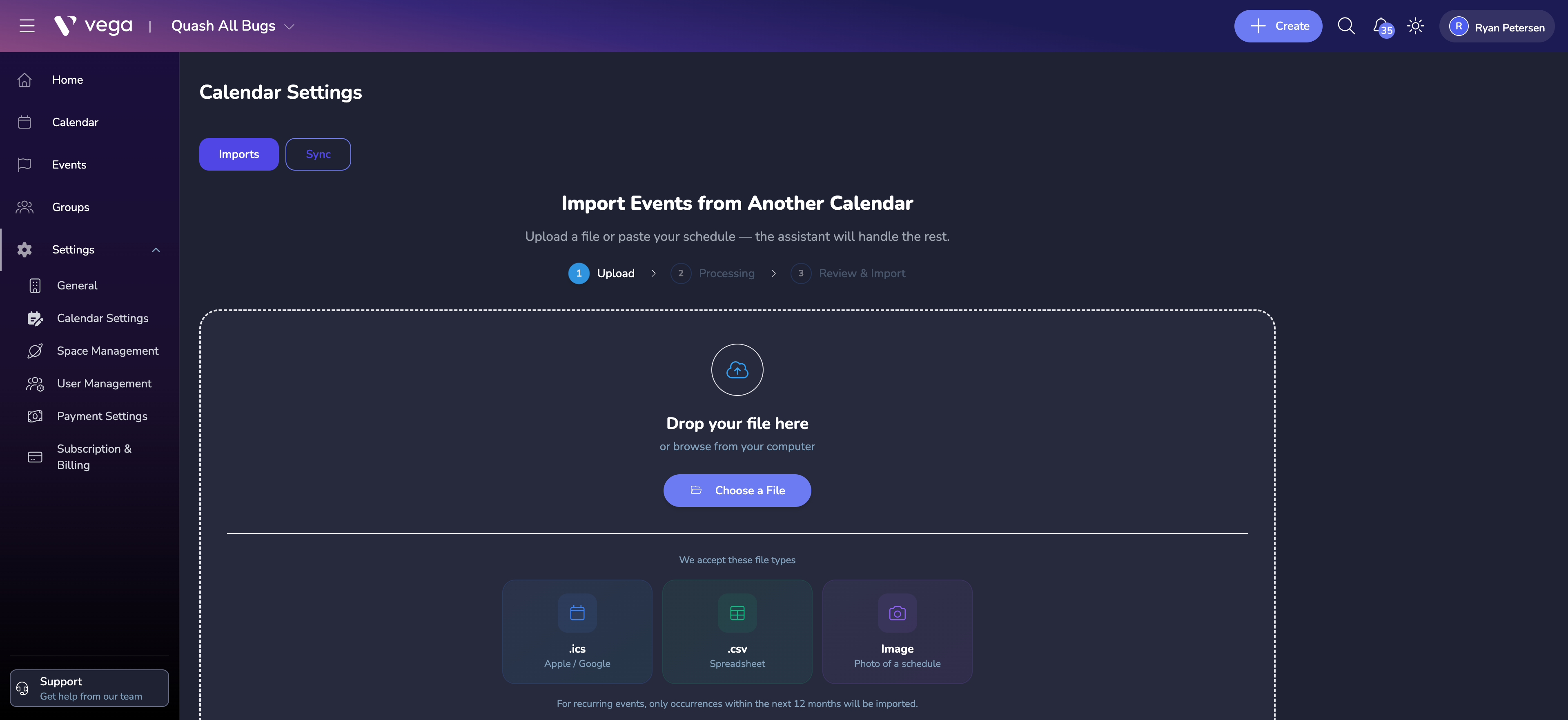
Importing Events from Another Calendar
You can import events from an existing calendar by uploading a file or pasting your schedule.
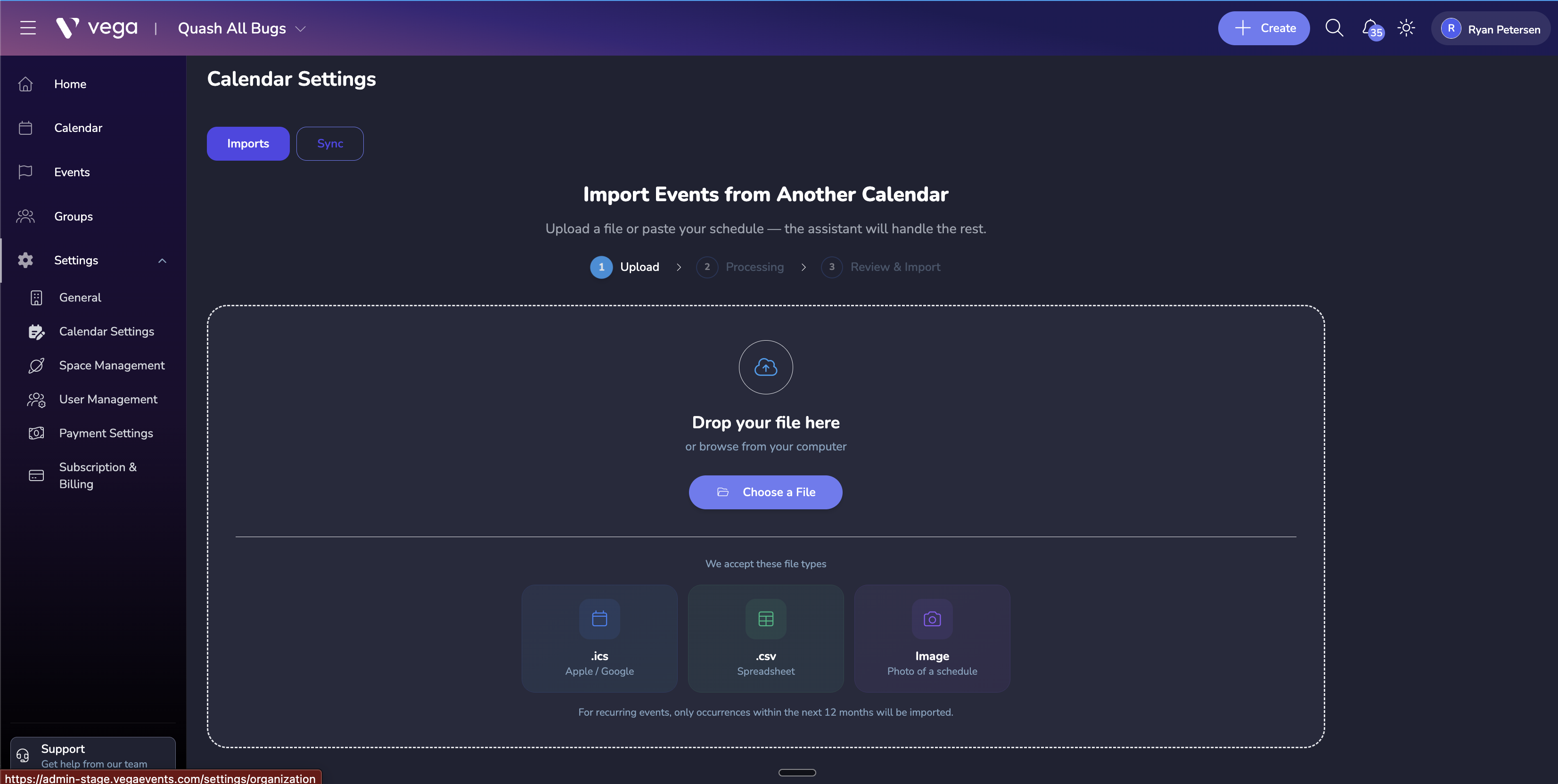
- Navigate to Settings > Calendar and click Imports.
- Upload your file (.ics, .csv, or an image of a schedule).
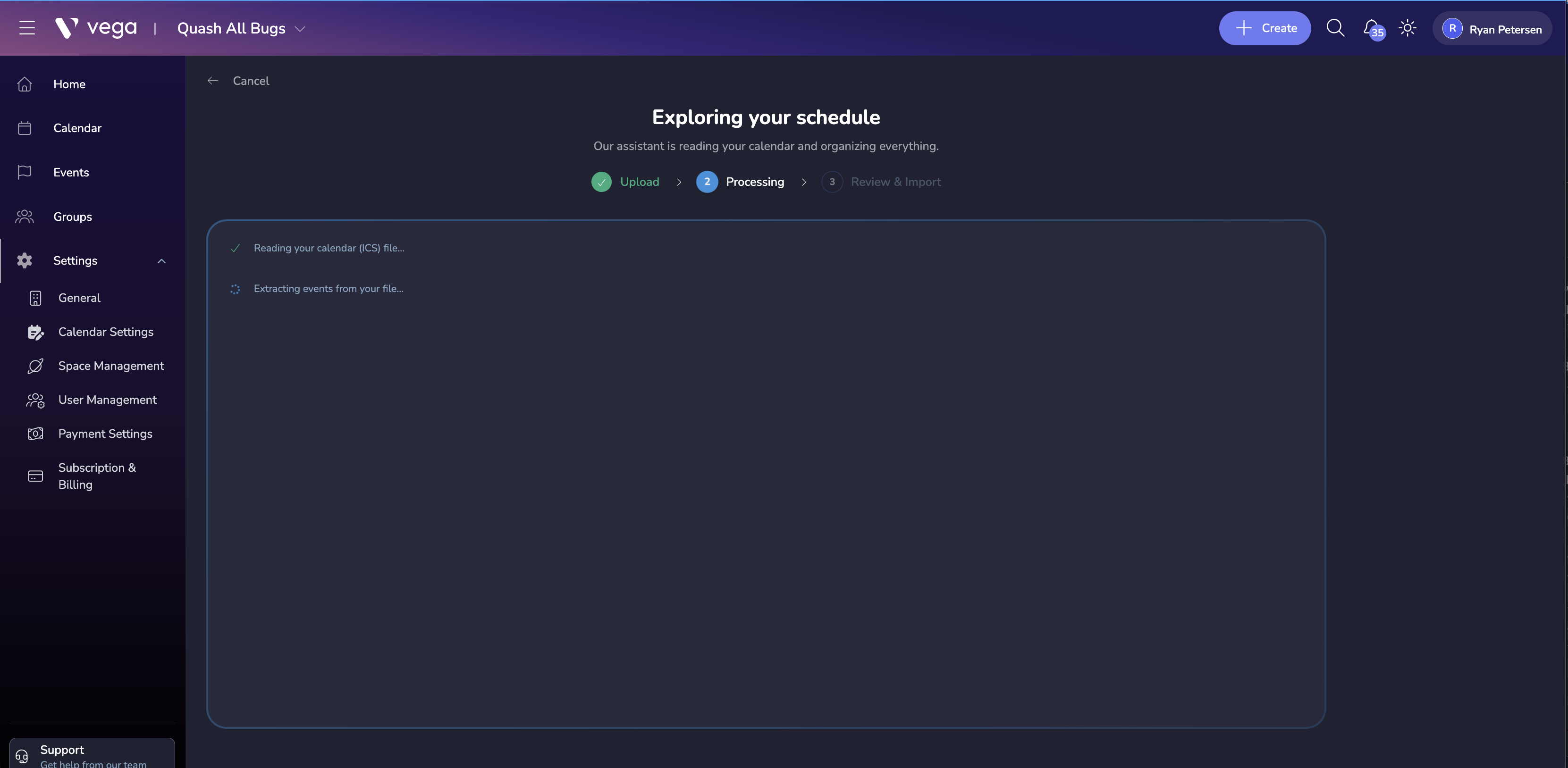
- Vega’s import assistant processes the file and extracts event details, showing live progress as it works.
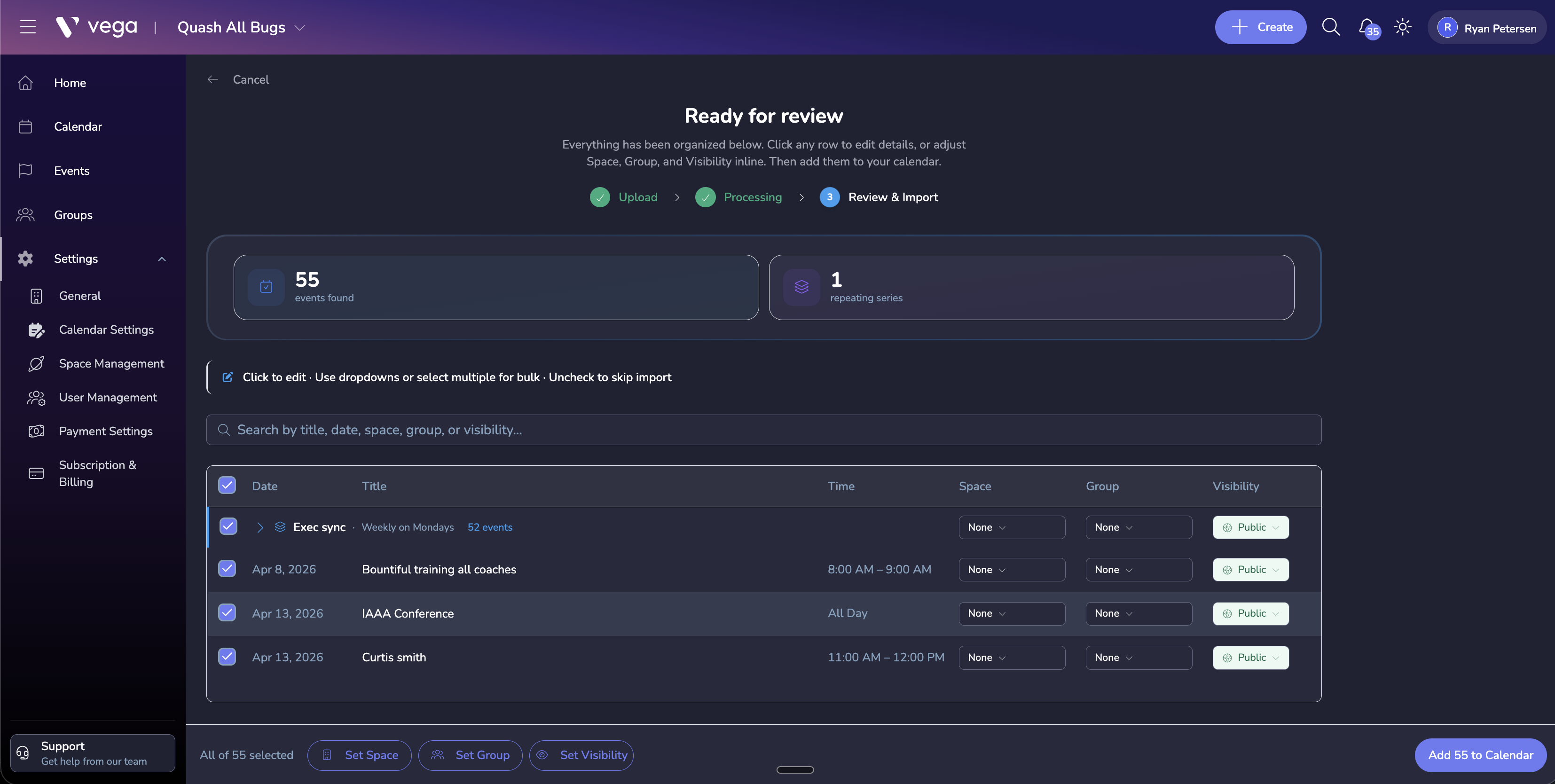
- Review the extracted events in the table and confirm the details before saving.
Display Options
Default View
Choose the default view when someone loads your calendar:
- Month – standard monthly grid
- Week – detailed weekly schedule
- List – a chronological list of upcoming events
Visible Event Types
Filter which events appear on the public calendar:
- All published events
- Only events with available tickets
- Only events tagged with specific categories
Date Range
Set how far into the future the calendar displays events. Options range from one month to one year.
Embedding Your Calendar
Share your event calendar on external websites:
- Go to Calendar Settings > Embed.
- Customize the embed appearance (width, height, color theme).
- Copy the embed code (an
<iframe>snippet). - Paste the code into your website’s HTML.
The embedded calendar updates automatically as you add or modify events in Vega.
Calendar Subscriptions
Allow attendees to subscribe to your calendar via standard calendar protocols:
- iCal feed URL – works with Apple Calendar, Google Calendar, Outlook, and other calendar apps
- Events are synced automatically as they are created or updated
Enable or disable the subscription feed from this settings page.
Tips
- Embed the calendar on your organization’s homepage to drive traffic to your events.
- Use the list view as the default if you have infrequent events – a mostly-empty month grid can look sparse.
- Test the iCal feed subscription in multiple calendar apps to confirm compatibility.