User Management
Invite staff to Vega, assign roles, and manage team access in User Management—onboard teammates without sharing one login or password.
Watch this walkthrough
All videos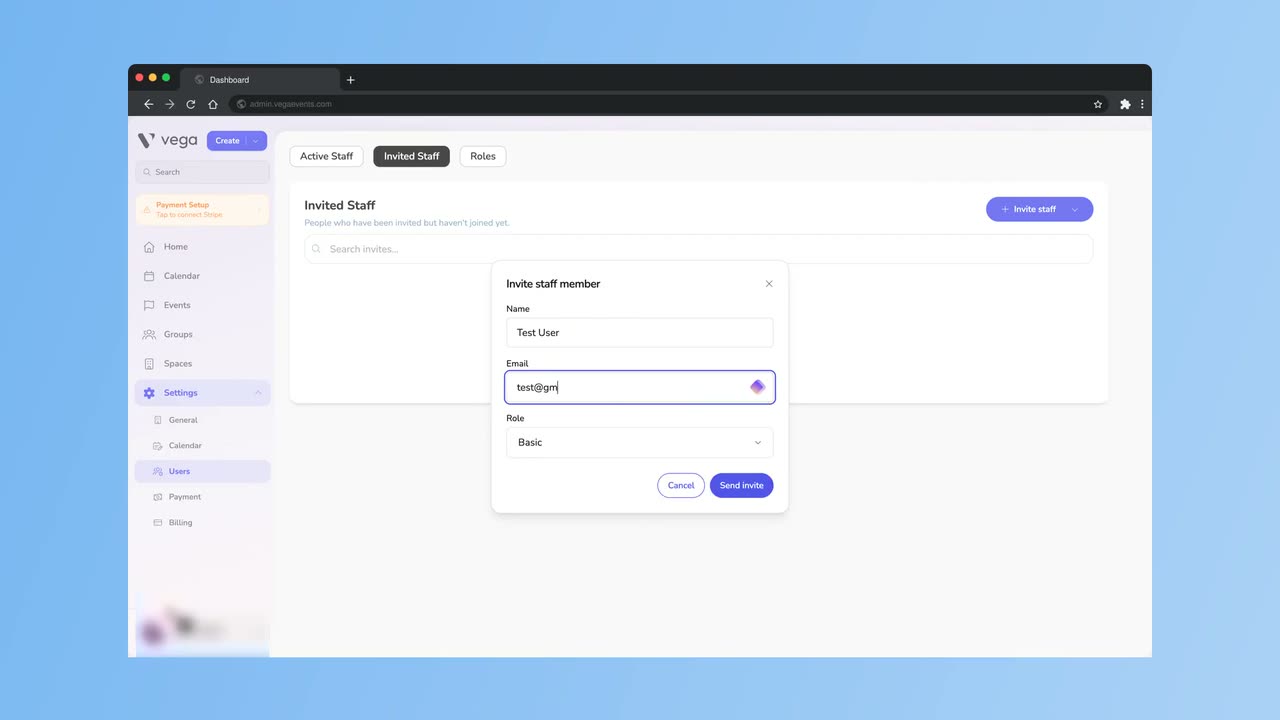
Manage your organization’s team from Settings > Users.
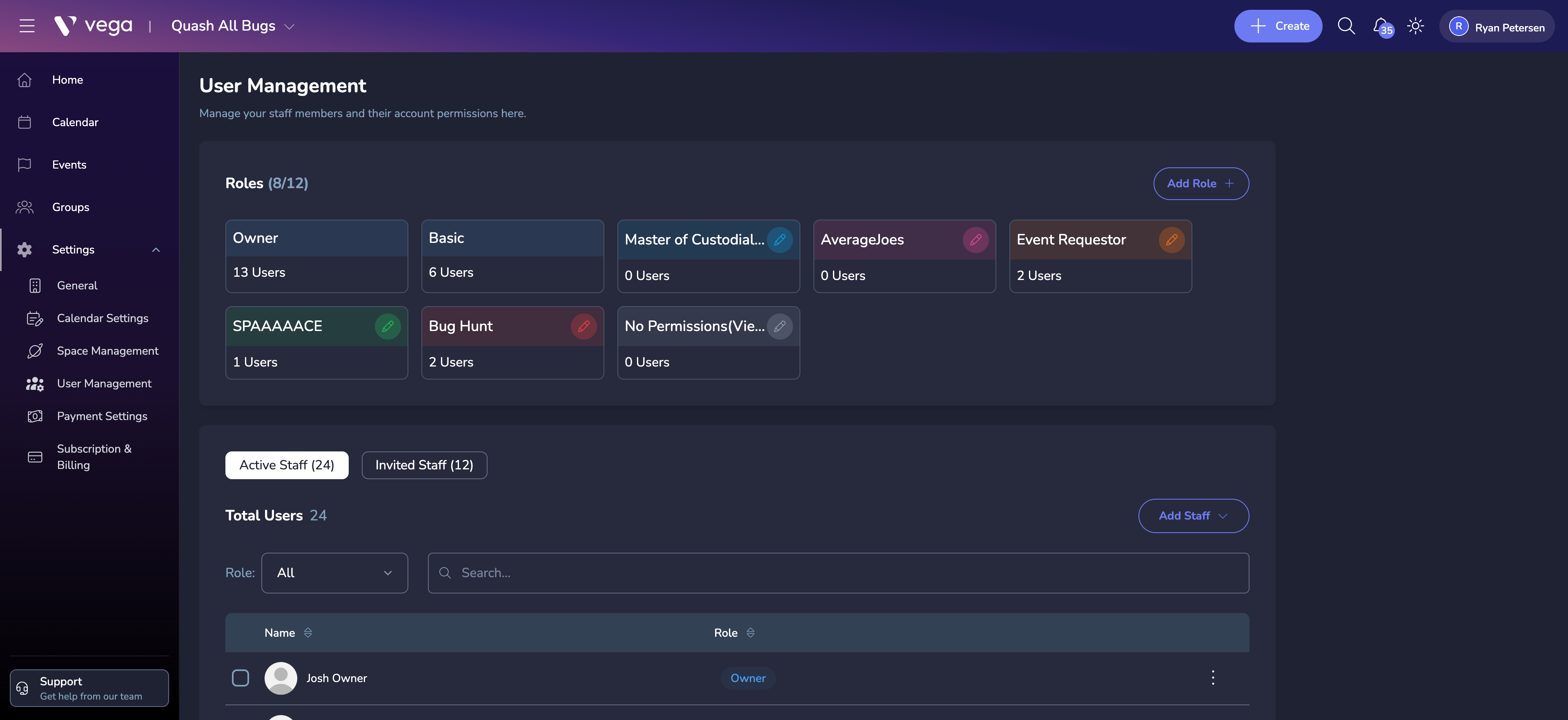
Inviting Staff
- Navigate to Settings > Users and open the Invited Staff tab
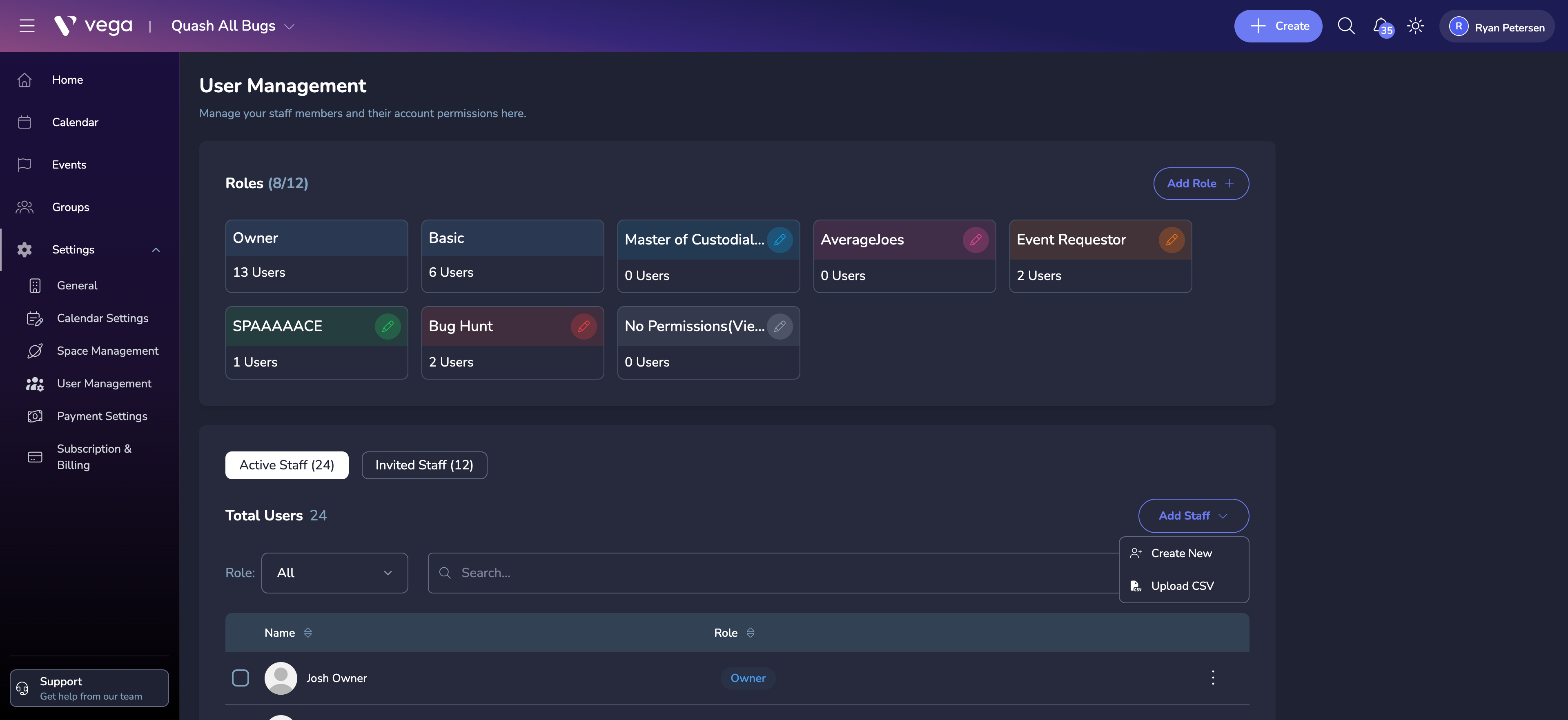
- Click Invite staff, then choose Invite Staff from the menu
- In the Invite staff member dialog, enter the staff member’s name, email, and optionally a phone number
- Select the role to assign
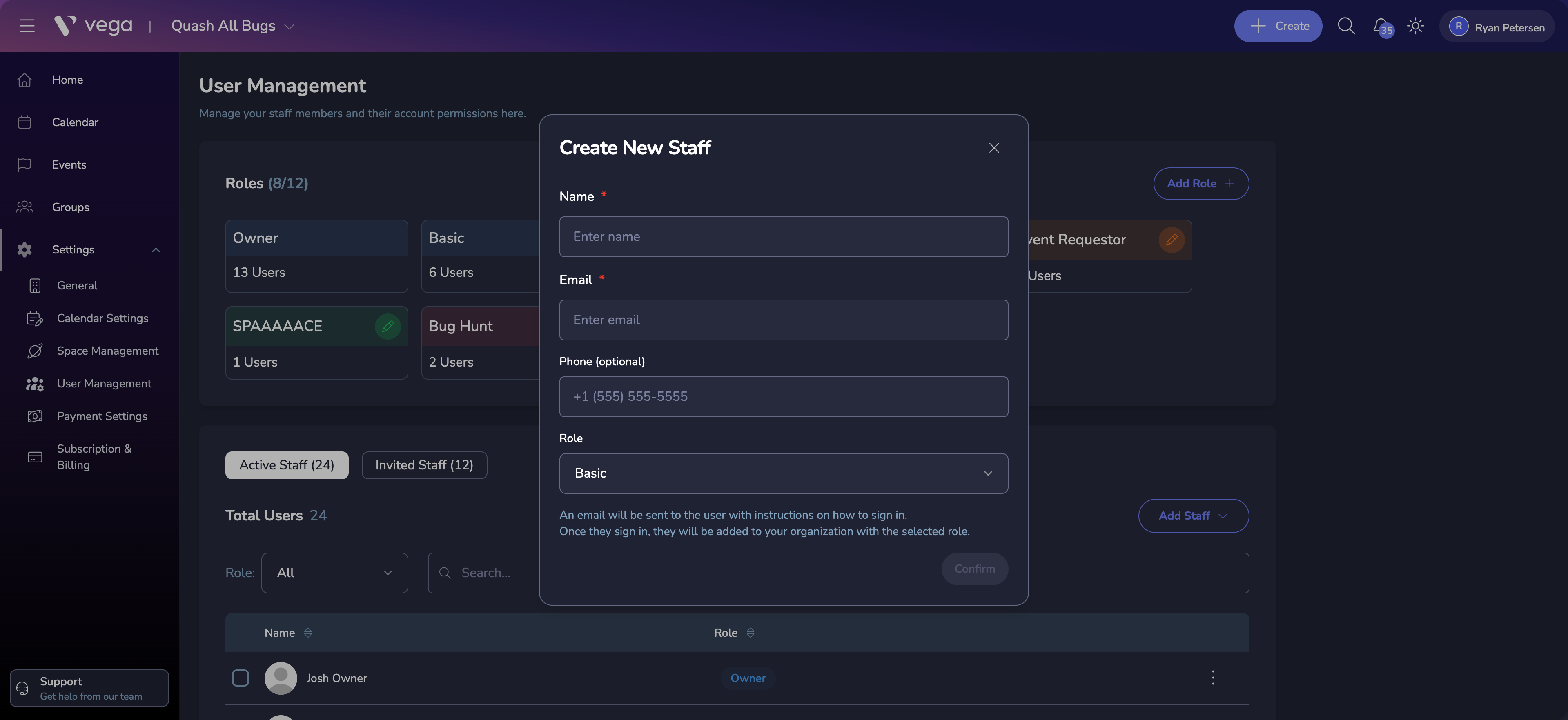
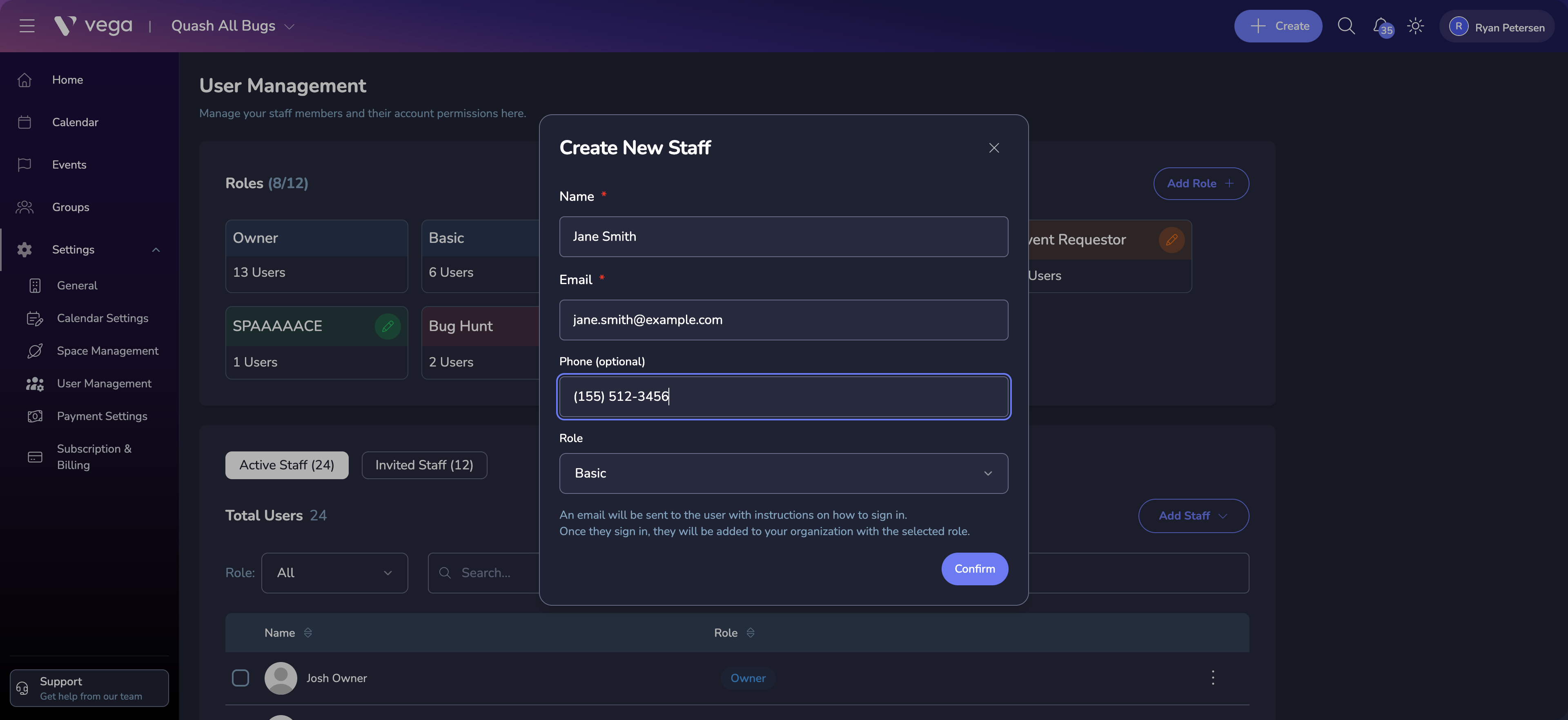
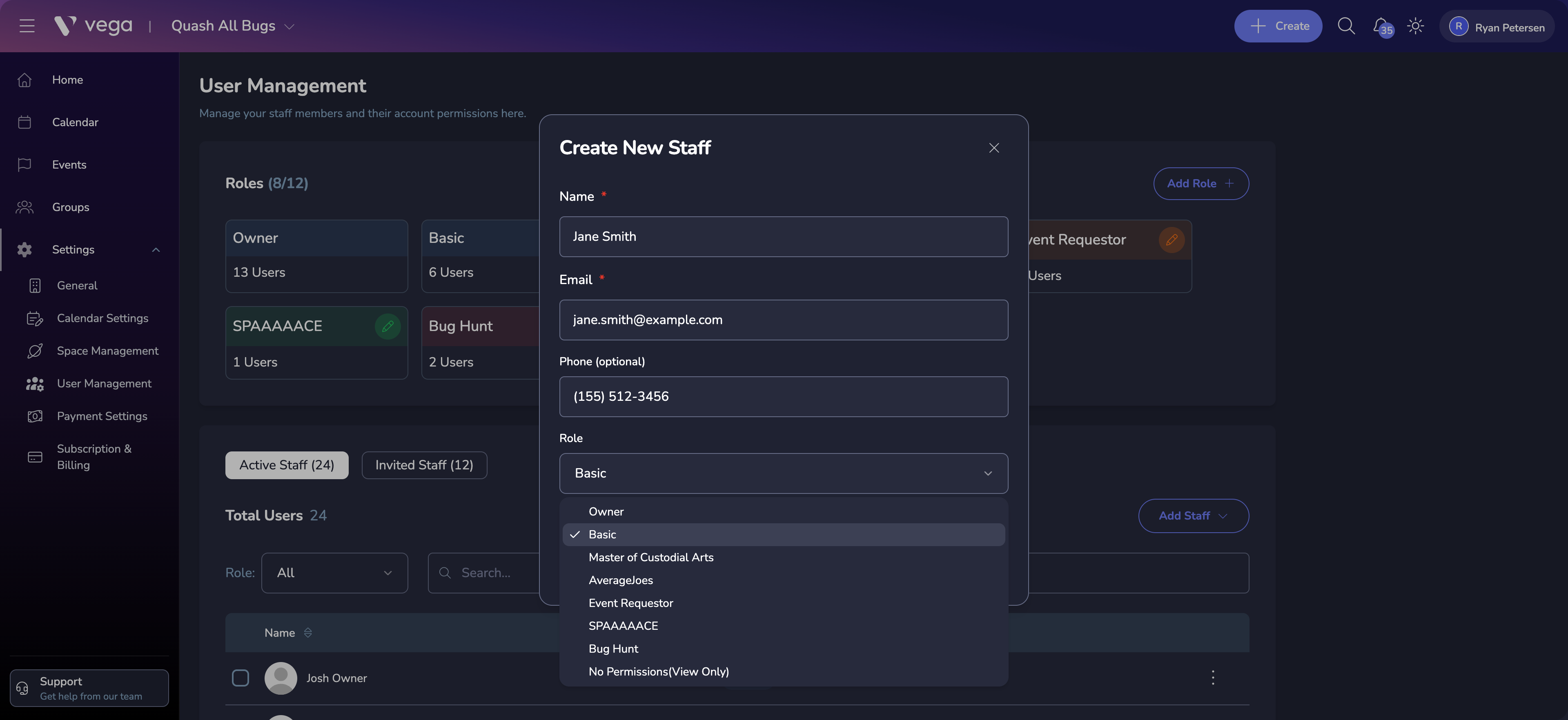
- Click Send invite
Invited members receive an email with a link to join your organization. If they don’t have a Vega account yet, they’ll be prompted to create one.
💡 Permission Required
You need the Manage Staff permission to invite or manage team members.
Bulk Upload Staff via CSV
You can invite multiple staff members at once by uploading a CSV file.
- Navigate to Settings > Users and click the Invited Staff tab
- Click Invite staff to open the dropdown menu
- Select Upload CSV
- Choose a role — all imported users will be assigned this role
- Upload your CSV file by clicking the upload area or dragging and dropping the file
- Review the preview — Vega will show how many users are ready to import and flag any errors
- Click Upload to send invitations to all valid users
CSV Format
Your CSV file must include the following columns:
- name — The staff member’s full name (required)
- email — A valid email address (required)
- phone — Phone number (optional; assumes US +1 if no country code is provided)
💡 Download a Template
Click Download Sample in the upload modal to get a pre-formatted CSV template you can fill in.
Managing Existing Members
From the User Management page, you can:
- View all current staff members and their roles
- Change roles — Reassign a member to a different role
- Remove members — Remove someone from the organization
Related
- Roles & Permissions — Create and configure custom roles
- Organization Onboarding — Initial staff setup during onboarding