Roles & Permissions
How Vega roles and permissions work: grant event, billing, and staff access, build custom roles, and fix permission errors for your team.
Vega uses a granular permission system that lets you control exactly what each team member can do. Instead of rigid preset roles, you create custom roles with the specific permissions your team needs.
How It Works
- Permissions are individual capabilities (e.g., “can create events” or “can manage staff”)
- Roles are collections of permissions that you name and assign to team members
- Each team member is assigned one role within your organization
Available Permissions
Events & Content
| Permission | What It Allows |
|---|---|
| Manage Events | Create, edit, and approve all events in the organization |
| Request Events | Create events (but only view/edit your own) |
| View Events | View all events, edit only your own |
Groups
| Permission | What It Allows |
|---|---|
| Manage Groups | View and edit all groups, create new ones |
| View Groups | View all groups, edit only those where you’re an admin |
Team
| Permission | What It Allows |
|---|---|
| Manage Staff | View and change staff roles and permissions |
| View Staff | View staff list, roles, and permissions (read-only) |
Spaces & Venues
| Permission | What It Allows |
|---|---|
| Manage Spaces | Create, edit, and view all venue spaces |
| View Spaces | View spaces (read-only) |
Organization
| Permission | What It Allows |
|---|---|
| Manage Organization | Edit organization profile, logo, description, and settings |
| View Organization | View organization details (read-only) |
Ticketing & Add-ons
| Permission | What It Allows |
|---|---|
| Manage Add-ons | Modify event add-ons (ticketing, forms, access codes) |
| View Add-ons | View add-on availability (read-only) |
Operations
| Permission | What It Allows |
|---|---|
| Scan Tickets | Scan admission tickets at event doors |
| Executive Permissions | Full admin access across the entire organization |
⚠️ Warning
Executive Permissions grants unrestricted access to everything, including billing and subscription management. Assign this carefully.
Creating a Custom Role
- Go to Settings > User Management
- Click on the Roles tab
- Click Add Role
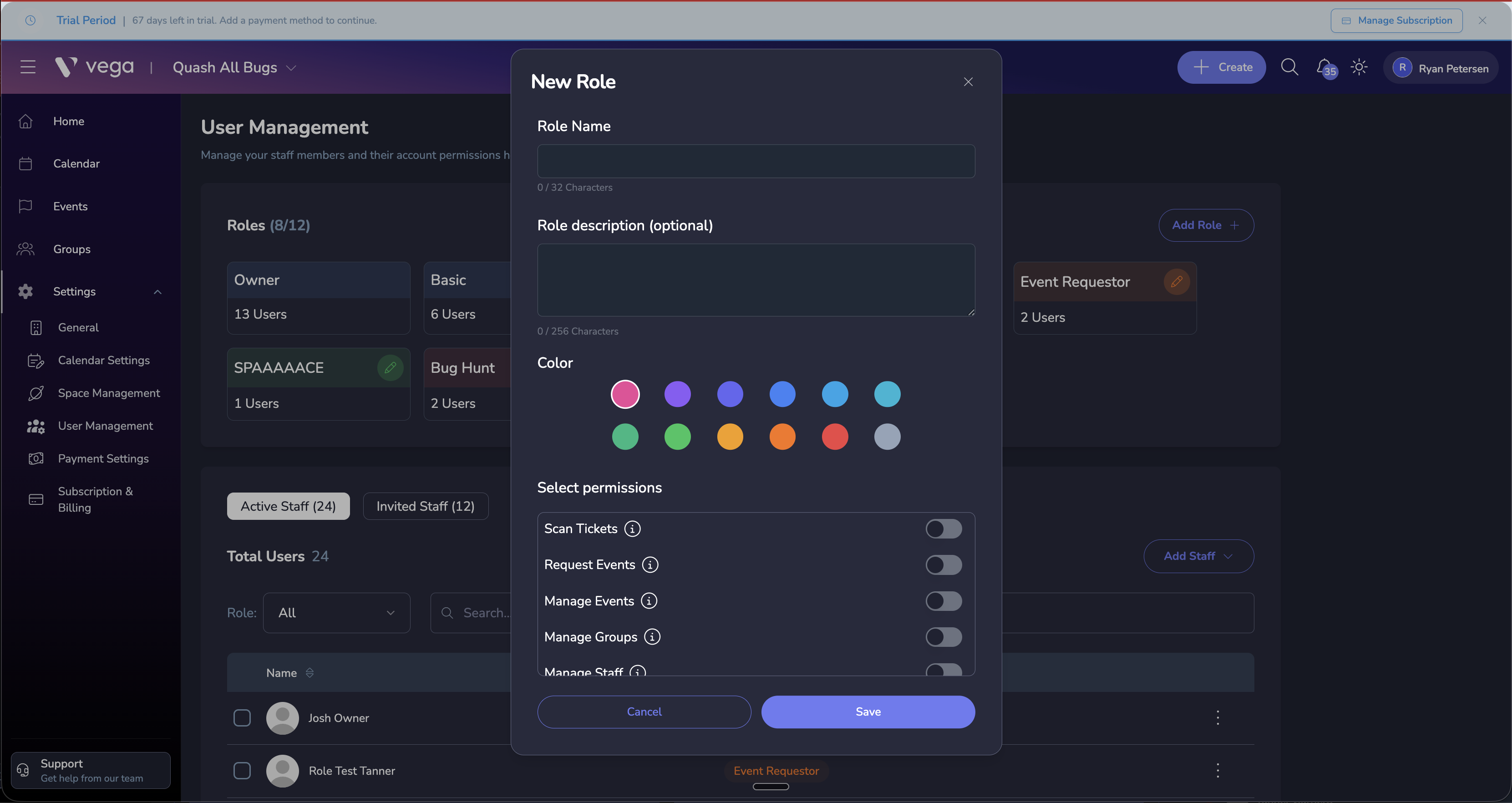
- Give the role a name (e.g., “Event Coordinator”), description, and color
- Select the permissions this role should have
- Save the role
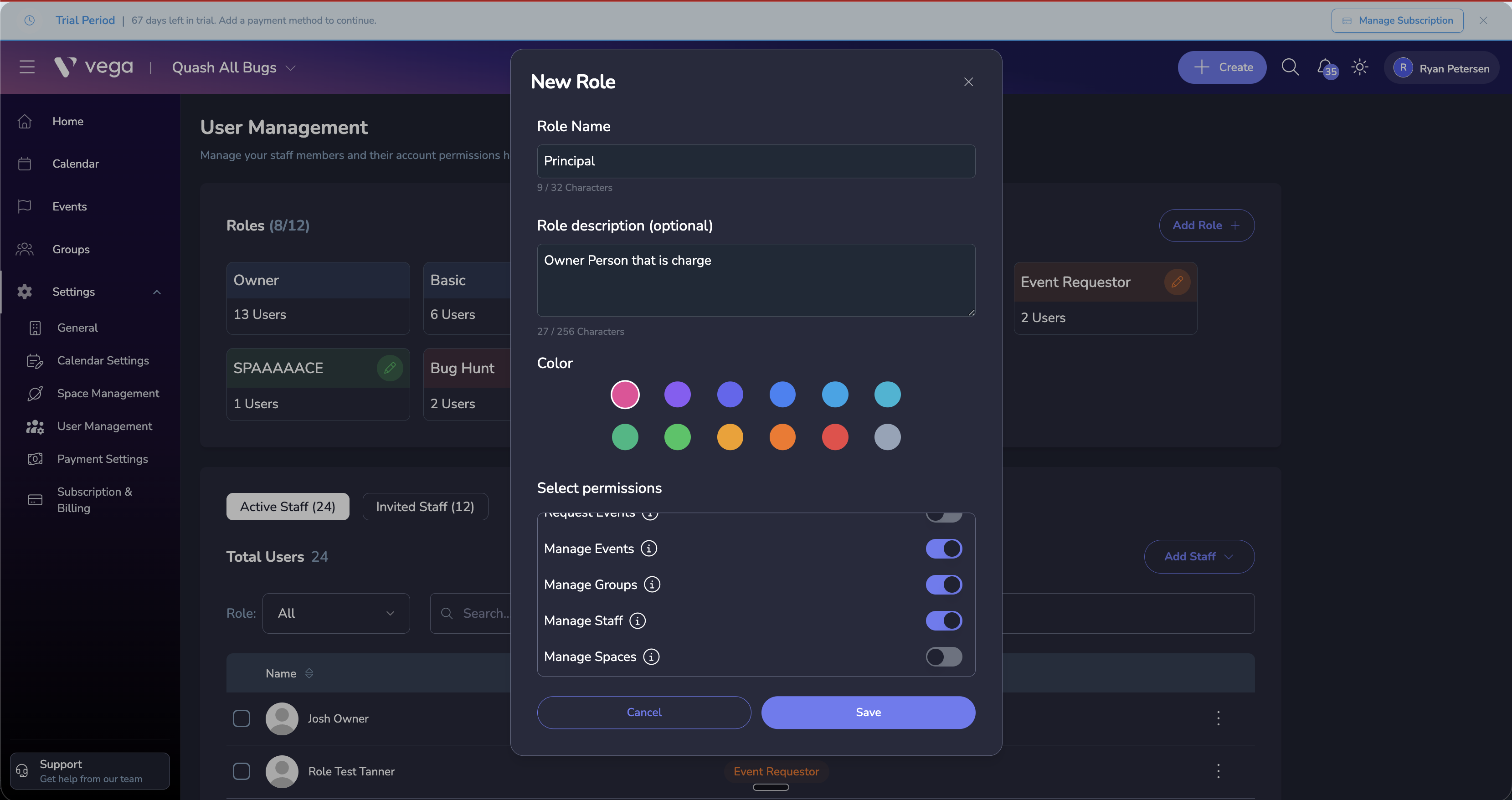
Example Roles
Here are some common role configurations:
Event Coordinator
- Manage Events, View Staff, View Spaces, Manage Add-ons
Front Desk / Door Staff
- Scan Tickets, View Events
Organization Admin
- Executive Permissions (full access)
Marketing / Content
- Request Events, View Groups, View Organization
Assigning Roles
When you invite a team member or update an existing member, select the role you want to assign them. Each member gets exactly one role.
Related
- User Management — Invite and manage team members
- Organization Onboarding — Initial setup including role creation