





AI Assistant

Ask Vega. Approve the plan.

Ask about your events, spaces, and groups in plain words, from a bar at the bottom of every page. Ask for a change and Vega shows you the plan first.
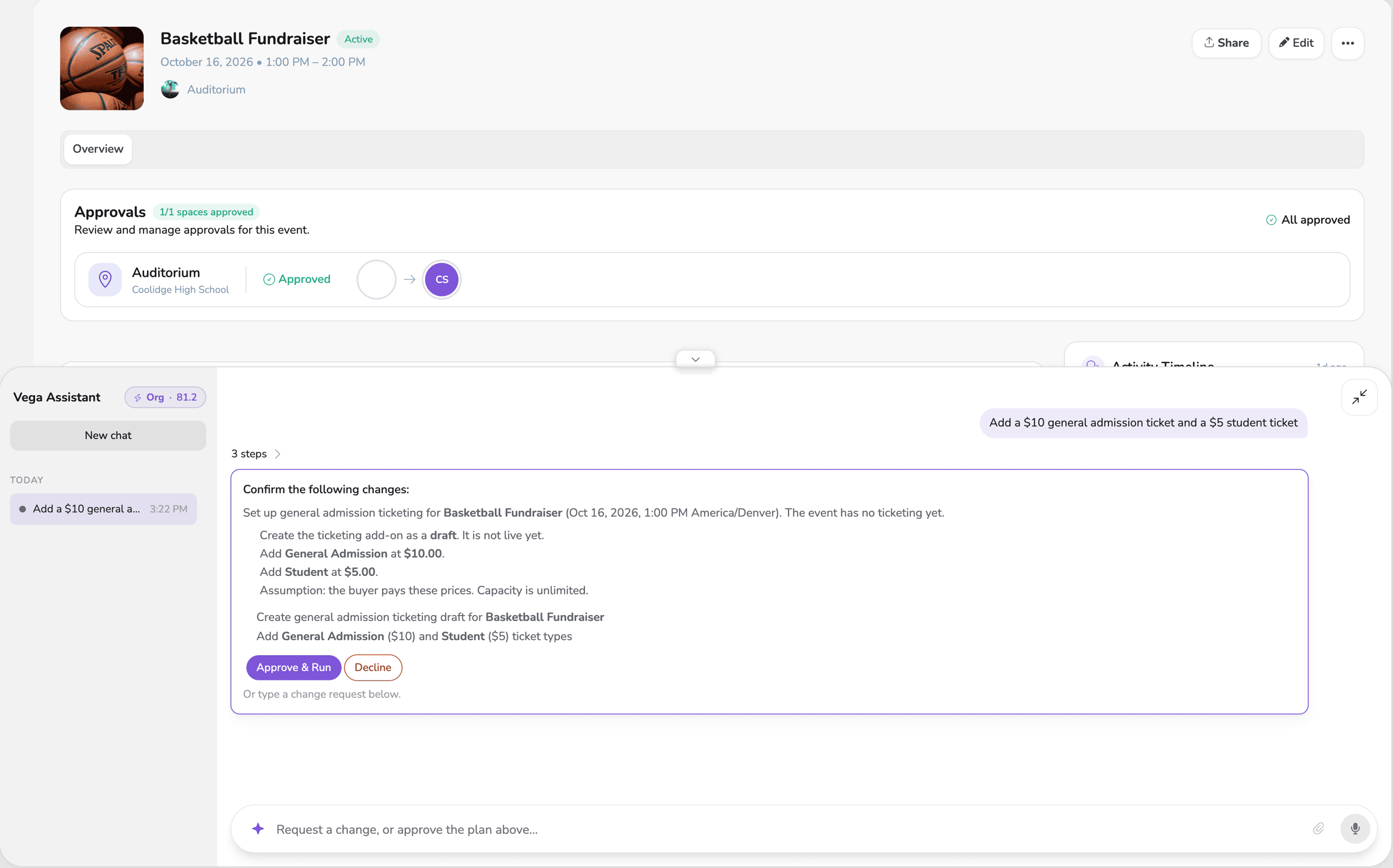
The AI Assistant on an event page, showing its plan to add a $10 general admission and a $5 student ticket, with Approve and Run and Decline buttons

Built to be trusted

Help that follows your rules

The assistant proposes. You approve. It works inside the permissions your school already set.

Approval first

It never changes your calendar, tickets, or people on its own. Every change waits for Approve & Run.

Your permissions

It works as you, with your role. A group leader can manage their group; only people who can refund can ask for a refund.

Your data stays yours

We do not let our AI providers train their models on what you ask or what it answers.

The AI Assistant is in Labs. Turn it on in Settings, under Features. Each request uses AI credits, from your school's balance first.

How it works

1Ask from any page

Which gyms are free Friday evening? What still needs my approval? The assistant knows which event, space, or form you have open, so you don't hunt through menus.

2You approve every change

A change comes back as a plan with Approve & Run and Decline. Nothing changes until you choose, and the assistant can only do what your role already allows.

3Turn a schedule PDF into events

Drop in a flyer, PDF, or CSV of games or rehearsals and it drafts the events for you to review.

See it work

Ask for it. Check the plan. Done.

Type what you need on the page you are already on. The assistant finds the details and lays out exactly what it will change.

You stay in charge

Every change starts as a plan.

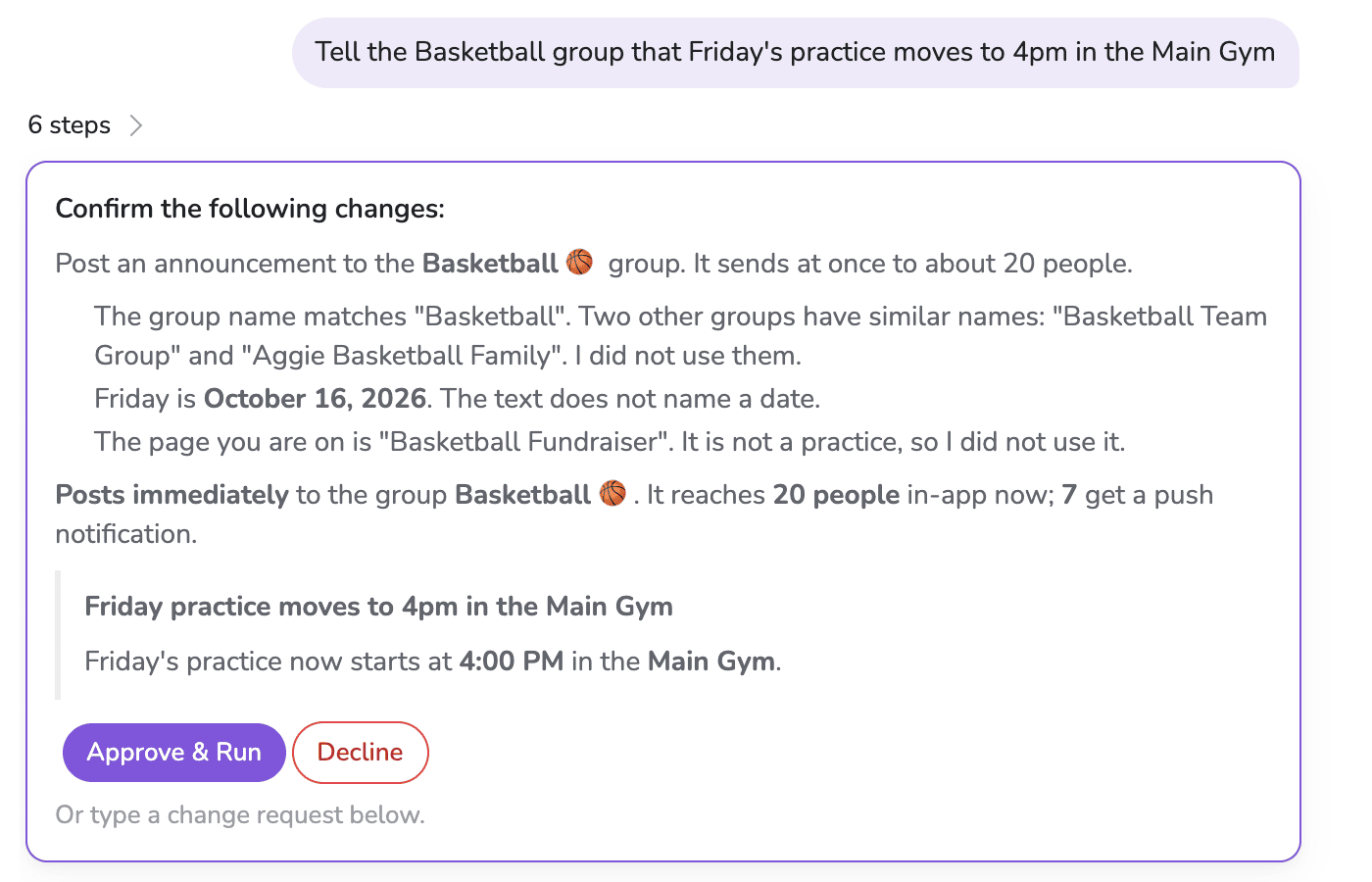
Ask for tickets, a season, or a moved practice and the assistant shows the plan, line by line. Nothing happens until you choose Approve & Run. Change your mind and Decline, or type what to fix.
  • Exactly what it will do, before it does it
  • Your role, nothing more. It can only do what you can already do in Vega
  • Announcements show the text and the reach, so you know who gets the notice
The AI Assistant planning an announcement to the Basketball group, showing the exact text, that it reaches 20 people, and Approve and Run and Decline buttons

Files in, events out

Hand it the schedule you already have.

Drop in a schedule PDF, a photo of a flyer, or a CSV export. The assistant reads it, tells you what it assumed, and drafts the events for you to review. A long schedule goes to the calendar import, so nothing gets missed.
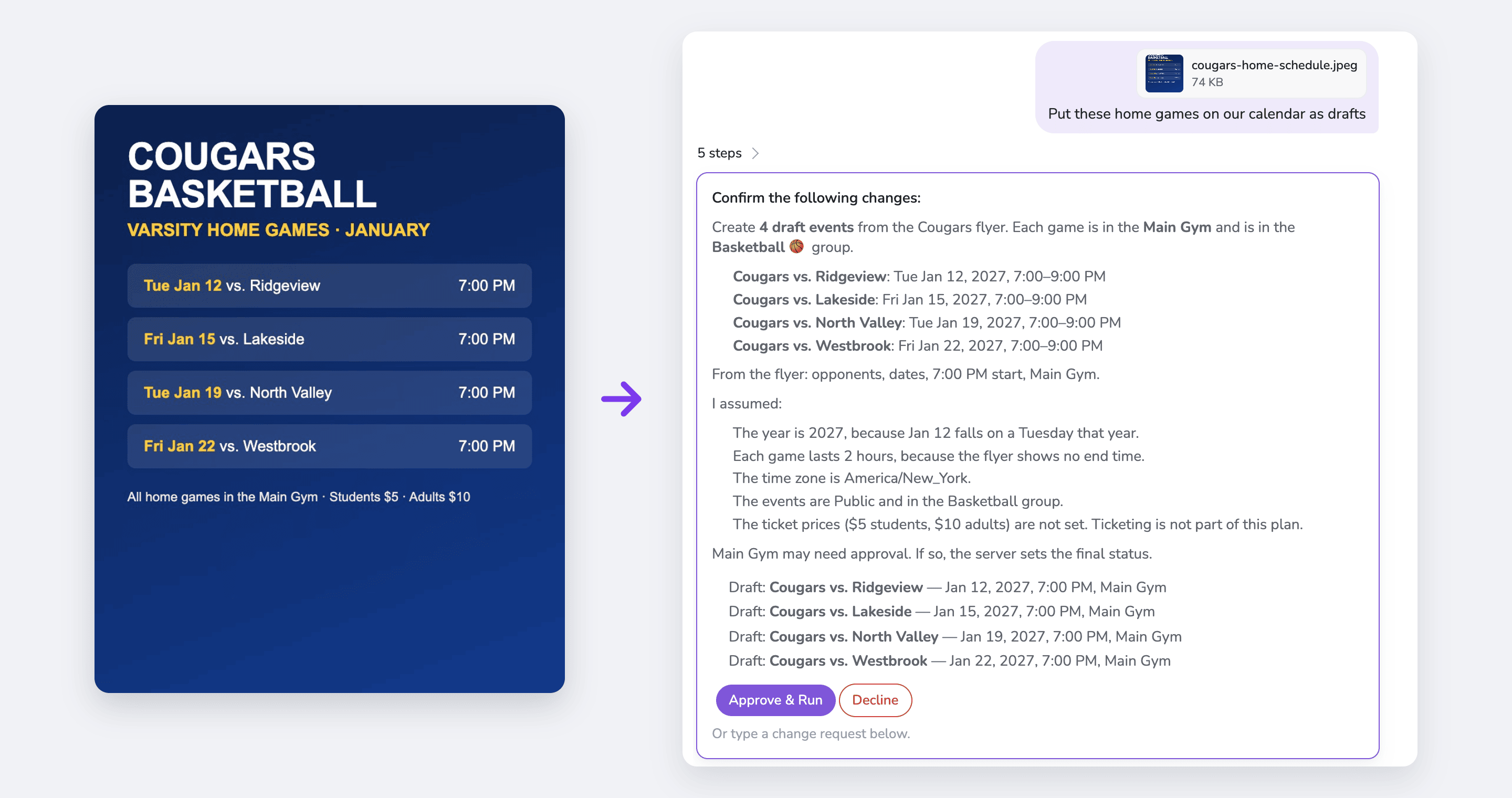
A basketball home-game flyer next to the AI Assistant's plan to create four draft games in the Main Gym, with the assumptions it made
  • PDFs, photos, CSV, and calendar files, up to five at a time
  • A comp list or an access-code list becomes tickets or codes in one step
  • Talk instead of typing on a computer, then edit before you send

What you can ask

One assistant for the whole school

It works across the parts of Vega your staff already use. A few things people ask it:

Events and seasons

  • Build the JV basketball season: home games every Tuesday and Friday at 7pm
  • Move tomorrow's rehearsal to 6pm
  • Which drafts are ready to publish?

Tickets and the door

  • Add a $10 general admission and a $5 student ticket
  • Comp 20 tickets for the booster club
  • How many tickets have we sold for homecoming?

Spaces

  • Which gyms are free Friday evening?
  • Block off the main gym for floor refinishing over winter break
  • Change the auditorium's hours for the summer

Rentals and reservations

  • What reservation requests are waiting on me?
  • Record a $200 check payment for Saturday's rental
  • Resend the invoice for the church league

Groups and announcements

  • Tell the choir that call time moves to 6pm
  • Invite these parents to the varsity soccer group
  • Who are the admins for marching band?

Forms and sign-ups

  • Build a field trip permission slip with emergency contacts and allergies
  • Who hasn't turned in the athletic waiver?
  • Make a snack sign-up for the tournament

Volunteers

  • Add volunteer sign-ups to the fall festival
  • Invite the PTO to work concessions
  • Resend the volunteer invite to anyone who hasn't answered

Appointments

  • Open parent-teacher conference times on Thursday
  • Add Ms. Rivera to the conference schedule
  • Reschedule the 4:30 conference to 5:00

Staff and settings

  • Invite our new assistant coach as staff
  • Which roles can approve events?
  • Update our contact email

Ask about anything

Answers without digging through menus.

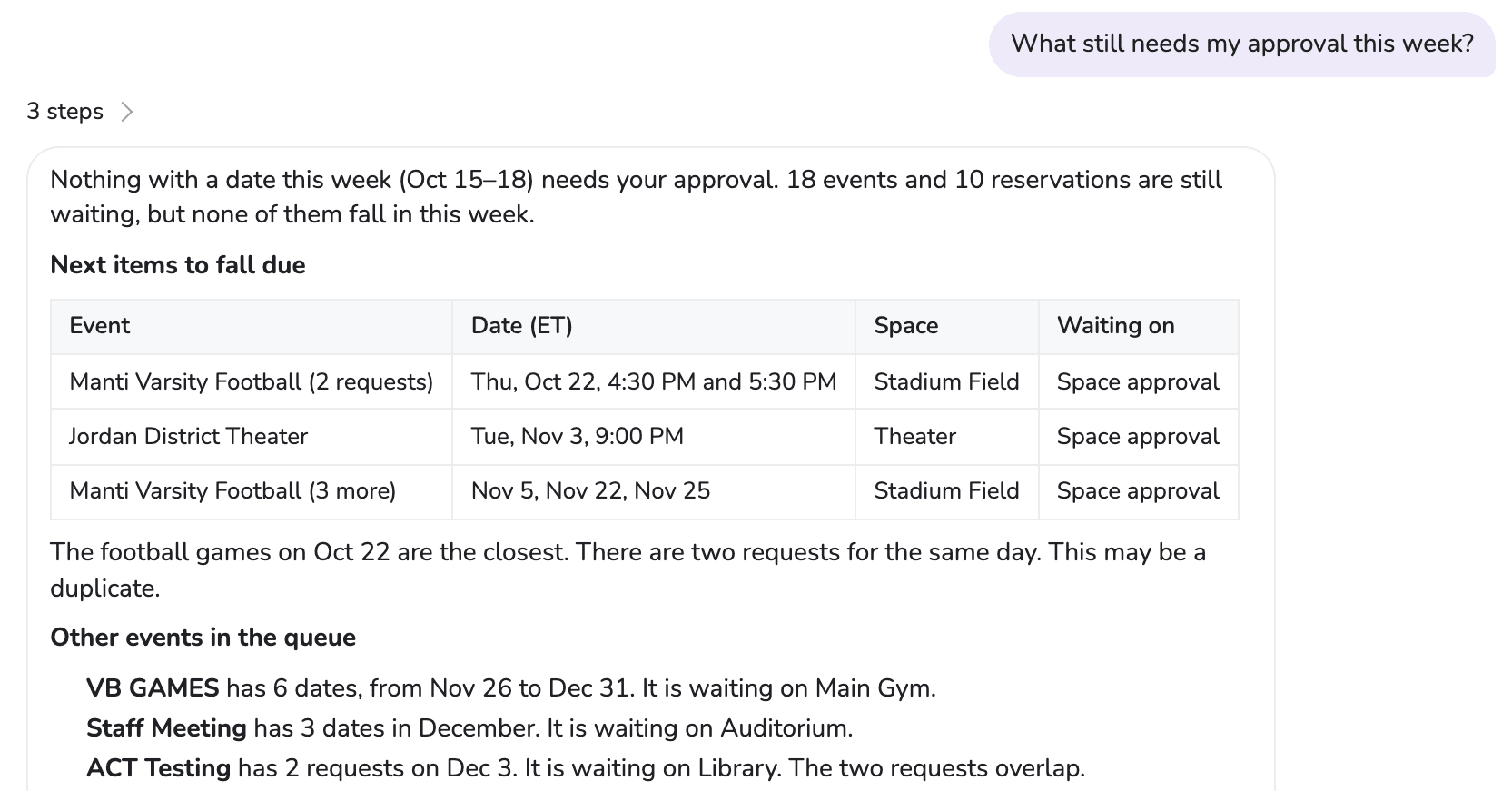
What is waiting on your approval, which spaces are open, how ticket sales are going. The assistant reads your own calendar and points out what needs attention, like two requests for the same field on the same day.
  • It knows the page you are on, so "publish this event" means this event
  • It keeps the conversation, so you can refine and follow up
  • It can take you there, and open the right page when you need it
The AI Assistant listing the events still waiting on space approval, soonest first

Try the assistant on your own calendar

Request a demo and ask it about your season, your gyms, and what is waiting on you.